On this page
- Quick comparison: six free browser fingerprint checkers
- 1. EnvTrace — check browser fingerprint and environment consistency
- 2. BrowserLeaks — inspect the details a website can see
- 3. Pixelscan — get a quick overview of your browser environment
- 4. BrowserScan — combine an overall check with technical detail
- 5. IPhey — understand a categorized report and MX Score
- 6. CreepJS — investigate advanced fingerprint signals
- Which checker should you use for your task?
- A practical workflow for comparing results
- Frequently asked questions
Just configured an antidetect browser profile, switched proxies, or changed your browser’s user agent or graphics settings? A browser fingerprint test can help you check what websites can observe—and whether the signals fit together.
Use EnvTrace to check consistency across browser identity, APIs, graphics, hardware and execution contexts, then review how the browser aligns with your IP and network environment. Use BrowserLeaks to inspect individual WebRTC, Canvas, WebGL or TLS values. Pixelscan, BrowserScan and IPhey offer other ways to review an overall setup, while CreepJS is useful for investigating more advanced fingerprint signals.
All six offer free online testing. The goal is to choose a checker that answers your question, not to compare scores that measure different things.
Quick comparison: six free browser fingerprint checkers
| Tool | Main focus | What to look at | Use it when… |
|---|---|---|---|
| EnvTrace | Browser fingerprint and environment consistency | Identity, APIs, graphics, hardware, execution contexts, stability; IP and network | You want to check whether a configured profile’s signals fit together |
| BrowserLeaks | Individual browser and network tests | WebRTC addresses, Canvas, WebGL, fonts, TLS | You need to inspect a specific exposed value |
| Pixelscan | Browser environment overview | Browser, device, network and consistency signals | You want a quick first look at a new setup |
| BrowserScan | Overview plus detailed checks | IP, WebRTC, Canvas, WebGL, timezone | You want a broad report and underlying details |
| IPhey | Categorized fingerprint results and MX Score | Browser, Location, IP, Hardware, Software | You prefer a score-led report with separate categories |
| CreepJS | Detailed fingerprint and anomaly signals | Headless, Stealth, Worker, Canvas, WebGL | You are investigating browser modifications |
If your first question is whether a configured browser profile looks internally consistent, start with EnvTrace. If you prefer a different summary format, try Pixelscan, BrowserScan or IPhey. Move to BrowserLeaks or CreepJS when a particular signal needs a closer look.
1. EnvTrace — check browser fingerprint and environment consistency
Website: EnvTrace Browser Fingerprint Test
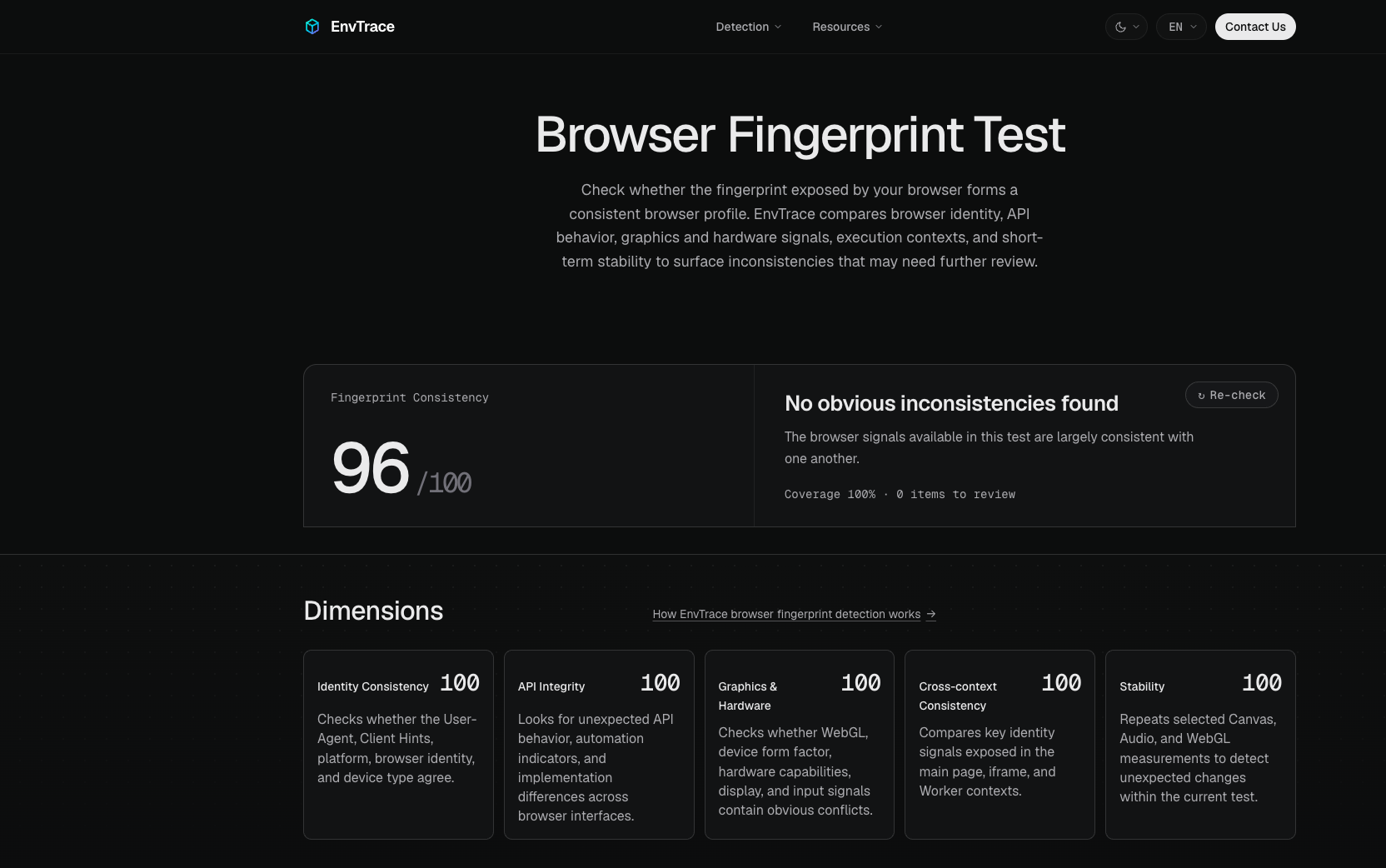
EnvTrace (our own tool) focuses on consistency rather than population-level fingerprint uniqueness. It asks whether the browser identity and technical signals exposed by your current profile form a coherent environment.
The browser fingerprint test looks at five areas:
- Identity consistency: whether the user agent, platform and Client Hints tell a compatible story.
- API integrity: whether selected browser interfaces show unusual behavior or signs of conflicting modifications.
- Graphics and hardware: whether reported device characteristics, WebGL and other hardware signals fit together.
- Cross-context consistency: whether selected values agree across the main page, an iframe and a Web Worker.
- Stability: whether selected signals change unexpectedly during the same assessment.
The result includes a fingerprint consistency score, assessment coverage, findings that deserve attention and the underlying browser data. For example, after changing a user agent, you can check whether the new identity still agrees with platform, Client Hints and graphics information.
Then open the EnvTrace account environment check to look at a different question: do your browser settings make sense alongside your current IP and network? That assessment checks relationships such as IP country versus browser timezone or language, and the public IP observed through WebRTC.
These are two complementary tasks: fingerprint consistency checks the browser itself; environment consistency checks the browser in the context of the network connection.
Best fit: people setting up antidetect browser profiles, changing browser or privacy settings, or checking their environment before an important account session. For how the scores and coverage are assessed, see the EnvTrace fingerprint methodology.
2. BrowserLeaks — inspect the details a website can see
Website: browserleaks.com
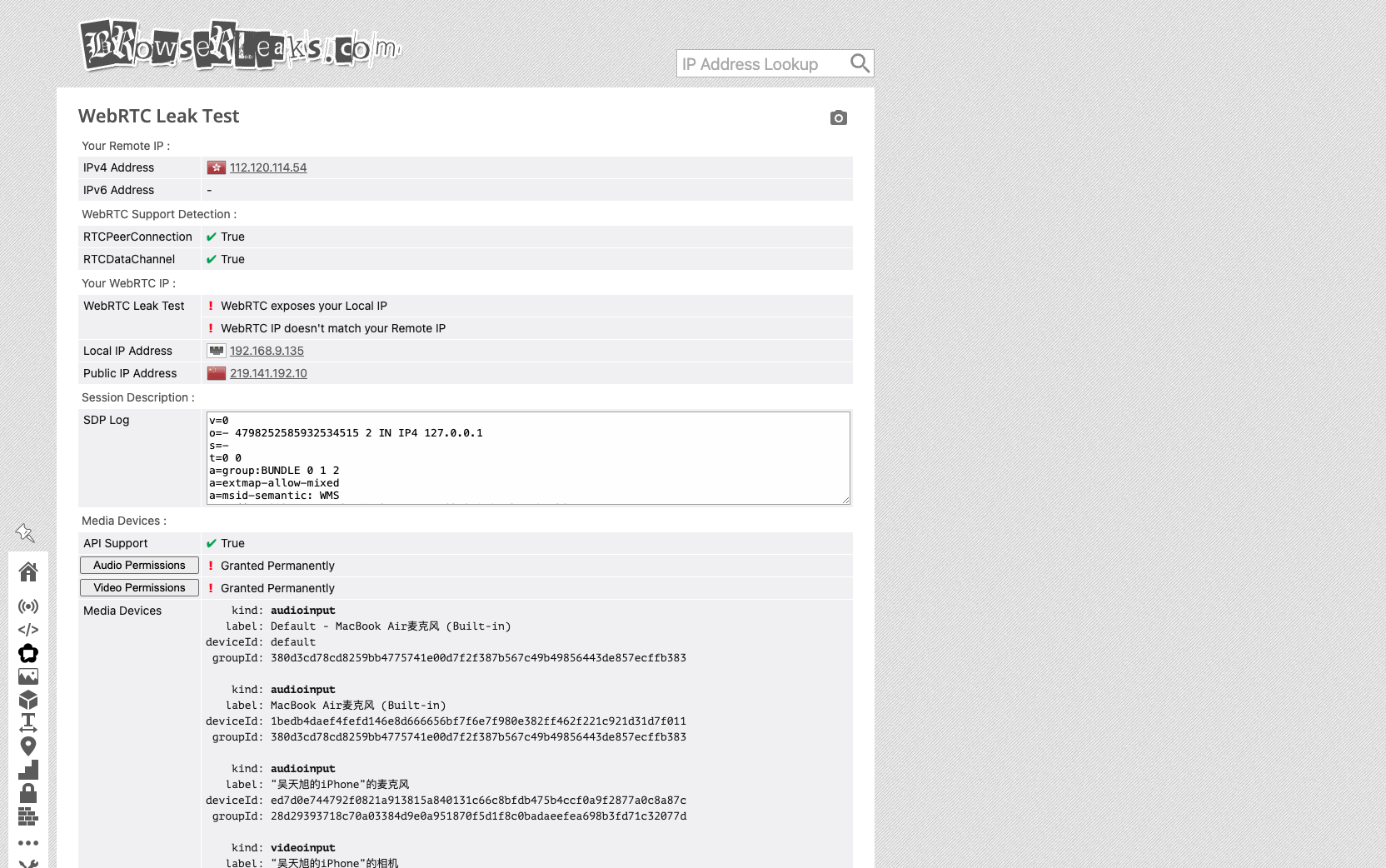
BrowserLeaks is a collection of focused tests rather than one overall environment verdict. That makes it especially useful when you already have a question in mind.
- WebRTC Leak Test displays your remote IP address alongside addresses obtainable through WebRTC.
- Canvas Fingerprint shows a Canvas signature and related information.
- WebGL Report reveals graphics-related values, including the renderer and fingerprint hashes.
- TLS Client Test examines protocol details and TLS fingerprints such as JA3 and JA4.
Suppose you have just switched to a proxy and want to inspect WebRTC addresses. You can go straight to that test, without interpreting an unrelated fingerprint score. If you’re checking what GPU information a browser exposes, the WebGL Report is a better starting point.
Best fit: people who need a specific network or browser value, not just a summary.
3. Pixelscan — get a quick overview of your browser environment
Website: pixelscan.net
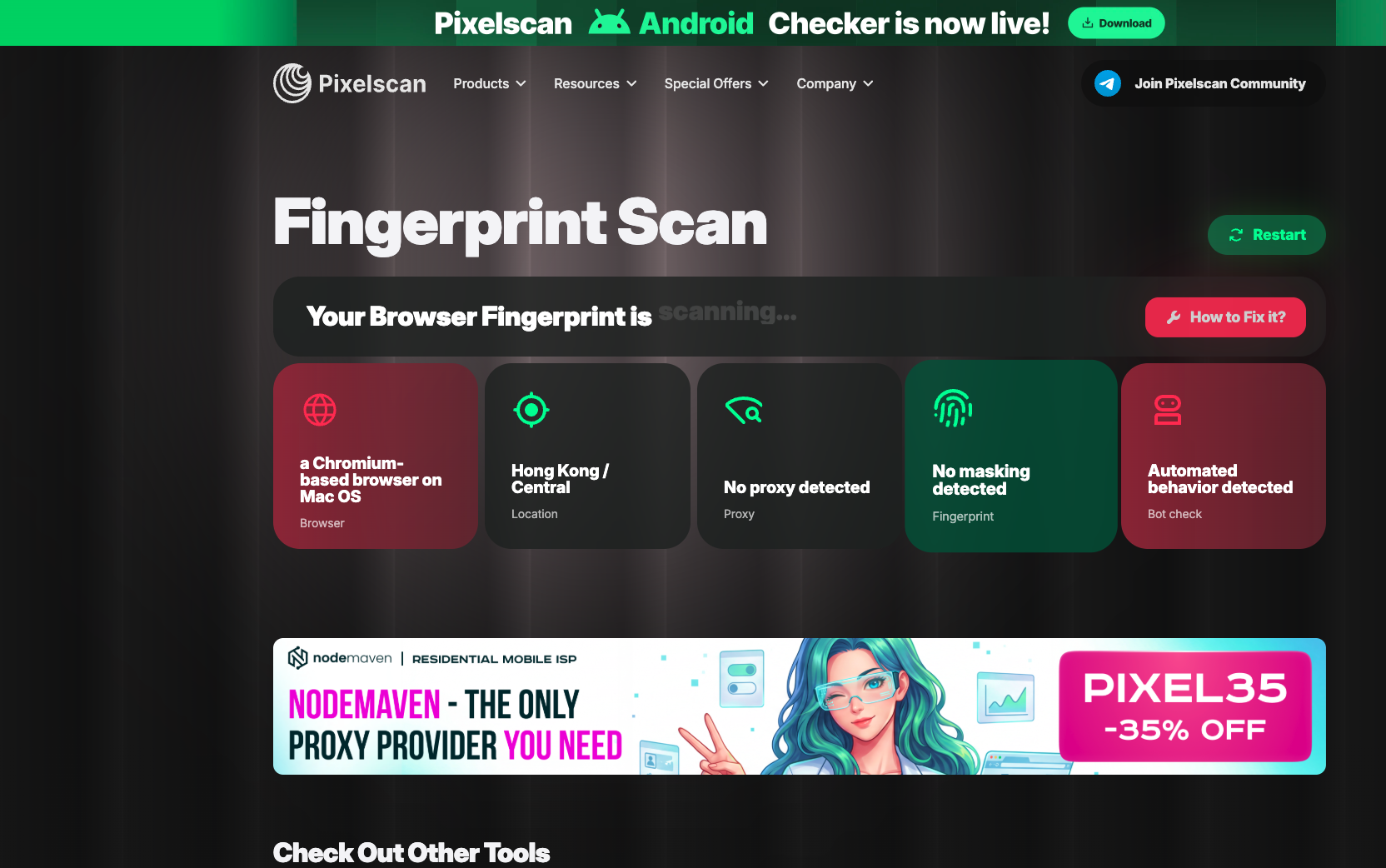
Pixelscan brings multiple browser, device and network checks into one view, with consistency-oriented signals that help you identify where to look next. Its appeal is the overview: you can begin without working through individual API reports.
This can be useful after creating a new browser profile. Start with the general result, then investigate any unexpected browser or network value using a more focused test.
Best fit: anyone who wants a simple first pass before looking at raw technical fields.
For a closer look at its interface, read the Pixelscan fingerprint test guide.
4. BrowserScan — combine an overall check with technical detail
Website: browserscan.net
BrowserScan covers browser and network information, and also offers dedicated checks for WebRTC, Canvas, HTTP/2 and TLS, Client Hints, WebGPU and more. This makes it a practical middle ground between a quick overview and individual technical tests.
If you are reviewing a newly configured browser, begin with the network address and timezone, then examine the browser identity and rendering information. When something differs from the configuration you expected, inspect that field before changing settings.
Best fit: users who want a broad report with a path into the underlying signals.
Related reading: What is BrowserScan? and How to read BrowserScan results.
5. IPhey — understand a categorized report and MX Score
Website: iphey.com
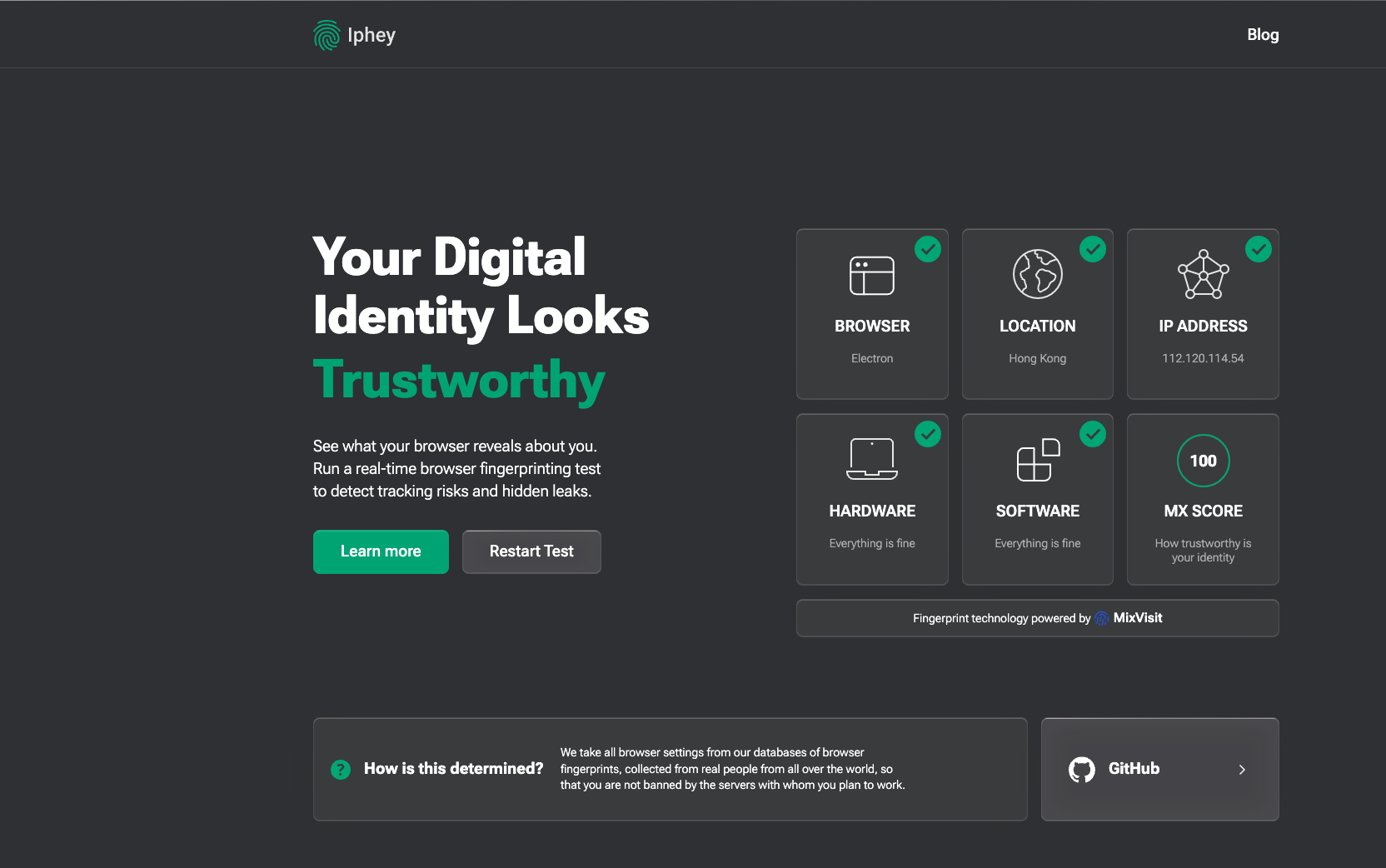
IPhey organizes its browser fingerprint report into categories such as Browser, Location, IP address, Hardware and Software, with an MX Score in the overview. That layout helps you move from a headline result to a particular area of the environment.
If the page calls out a browser-related issue, look at the browser category rather than assuming the proxy is responsible. If the concern is the connection, begin with IP and location information. The useful part of the report is the evidence behind the number.
Best fit: users who like a categorized, score-led starting point.
For help reading the score, see the IPhey MX Score and results guide.
6. CreepJS — investigate advanced fingerprint signals
Website: CreepJS online test
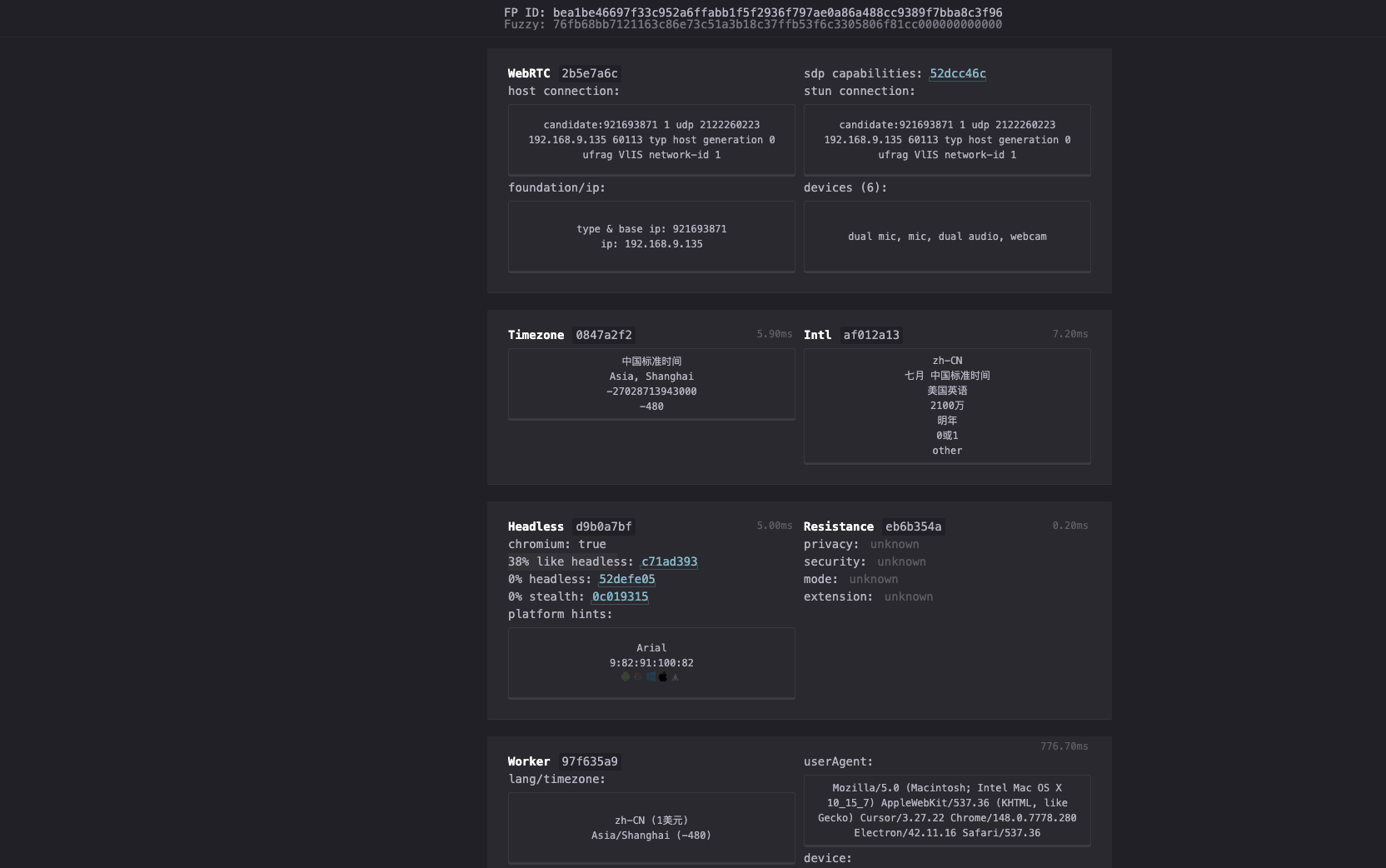
CreepJS exposes a much denser collection of browser signals. Its report includes Headless, Stealth, Worker, Canvas, WebGL, fonts and other surfaces. It also looks for certain signs of API modification and disagreement between browser contexts.
For someone testing a modified browser profile, that depth can be useful. If you have changed user-agent or graphics-related settings, CreepJS can help identify which reported properties deserve another look. Rather than treating a percentage as a universal judgment, follow the specific signal it refers to.
Best fit: experienced users, browser testers and people investigating unusual fingerprint behavior.
Start with the CreepJS results explainer if the report looks overwhelming.
Which checker should you use for your task?
You just created a new browser profile
Start with EnvTrace to check whether the profile’s identity, APIs, graphics, hardware and cross-context signals agree. Then review your IP, timezone, language and WebRTC in the account environment check. BrowserLeaks helps when you need the raw details behind a particular result. Pixelscan, BrowserScan or IPhey can provide an additional overall view.
You changed your proxy or enabled a VPN
If you’re checking a newly purchased proxy, start with the EnvTrace IP address check to review the IP type, proxy flags, blacklist records and abuse-risk signals. Then use the account environment check to see how the network aligns with your browser settings. For a closer look at WebRTC addresses, open BrowserLeaks WebRTC. Private IPs, IPv6 addresses and mDNS hostnames need to be interpreted differently; the key question is whether an unexpected public network path is exposed.
A score looks fine, but you still want to understand an unexpected result
Read the findings behind the score. EnvTrace’s fingerprint consistency score summarizes conflicts found in the checks that completed; coverage tells you how much of the assessment had enough data to run. Inspect the flagged category and raw values. If the concern is about your IP, timezone or WebRTC route, move to the environment or network checks. Scores from different tools are not directly interchangeable.
A practical workflow for comparing results
- Test the environment you actually plan to use. Keep the same browser profile and network or proxy setup throughout a comparison.
- Check the overall setup. Use EnvTrace to review fingerprint consistency and how the browser fits the current network. Pixelscan, BrowserScan or IPhey can provide an additional summary.
- Inspect what needs attention. Open the relevant BrowserLeaks test for WebRTC, Canvas or WebGL details. Use CreepJS for deeper investigation into fingerprint behavior.
- Change one thing at a time. If you adjust a setting, revisit the same test and compare the before-and-after values. Mixing results from different networks or profiles makes the comparison less useful.
Frequently asked questions
What is the best browser fingerprint test site?
The right choice depends on the task. Use EnvTrace to check whether a browser profile’s identity, APIs and hardware signals fit together, then review network consistency. Choose BrowserLeaks for individual WebRTC, Canvas and WebGL values. Pixelscan, BrowserScan and IPhey provide other overview formats, while CreepJS offers deeper fingerprint details.
Are these browser fingerprint checkers free?
Each of the six offers a freely accessible online test. Features, additional services and access conditions may change, so check the current website for details.
Do I need to run all six tests?
Usually not. One general checker may be enough for a first look. Add a specialized test when you need to verify a specific signal. Different tools examine different inputs and use different criteria, so their percentages should not be treated as interchangeable.
Does a higher EnvTrace consistency score mean an account is safe?
A higher score means fewer clear conflicts were found in the fingerprint checks that had enough data to run. Read it alongside coverage and the specific findings. It describes observable browser consistency, not an account acceptance or platform risk score.
What is the difference between fingerprint and environment consistency?
Fingerprint consistency checks how browser identity, APIs, graphics, hardware and execution contexts fit together. Environment consistency adds the context of your current network, including IP location, browser timezone, language and WebRTC public IP observations. Both are useful when validating a newly configured browser profile.