Pixelscan Fingerprint Test: Features, Results & Limitations
Pixelscan is an online browser environment checker that helps you see what websites can detect about your browser and network connection. It combines browser fingerprint analysis with IP, proxy, WebRTC, DNS, and other diagnostic tools.
On this page
If you use a VPN, proxy, or a separate browser profile, Pixelscan can help you check whether the environment being reported matches what you expect.
The important part is knowing how to read the results. A fingerprint test can reveal inconsistencies and unexpected network exposure, but it cannot tell you with certainty how every website will evaluate your browser.
This guide explains what Pixelscan checks, how to interpret the main results, and where its conclusions have limits.
What does Pixelscan check?
Pixelscan provides several browser and network diagnostic tools. Its fingerprint scanner collects information exposed by the browser, while its other checks examine network-related signals.
| Check | What it examines | Why it matters |
|---|---|---|
| Browser fingerprint | Browser, OS, Canvas, WebGL, fonts, screen and hardware-related signals | Shows technical characteristics exposed to websites |
| IP and location | Public IP, ISP, geolocation and network information | Helps verify the network exit being used |
| Timezone and language | Browser regional settings and IP-related location data | Helps identify possible environment mismatches |
| WebRTC | Network addresses exposed through browser connectivity checks | Can reveal an unexpected public network address |
| DNS | DNS resolution behavior | Helps identify unexpected DNS routing |
| Proxy and VPN | Network classification and proxy-related indicators | Provides additional context about the connection |
| Bot detection | Browser and automation-related signals | Highlights possible automation indicators |
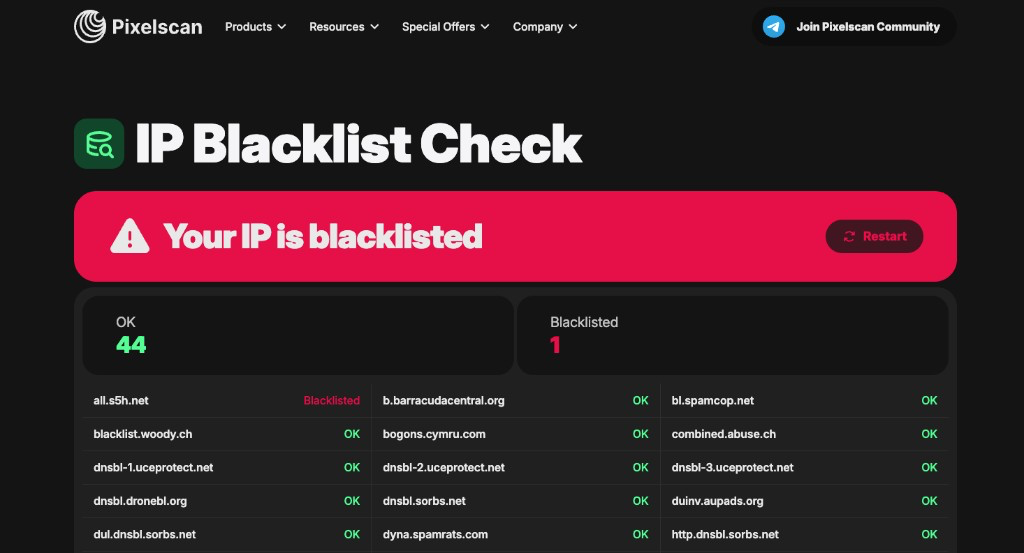
These checks answer different questions. An IP check tells you about the network connection, while a browser fingerprint test describes the browser environment. Neither result alone provides a complete assessment of how another service will treat the session.
How to read Pixelscan fingerprint results
Start with the values you can verify independently, then examine whether the reported signals make sense together.
1. Check your browser and operating system
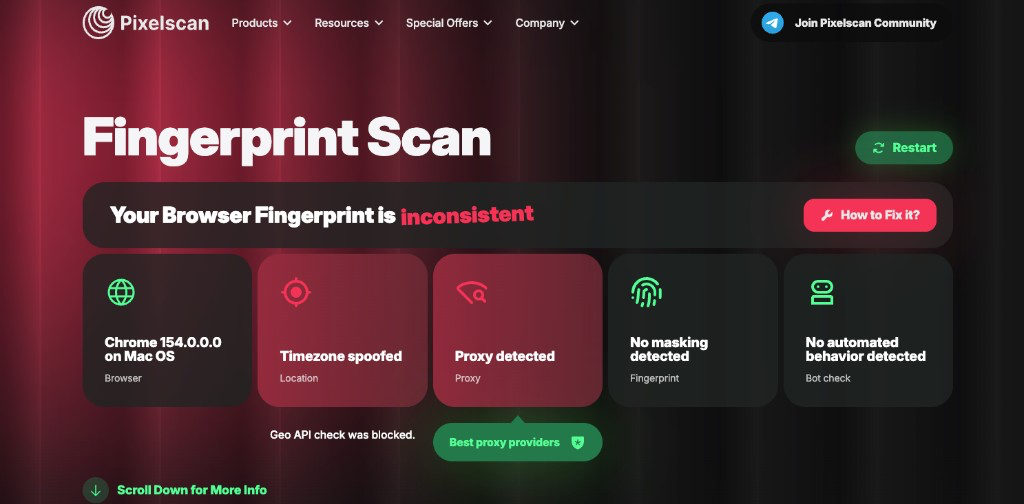
The fingerprint report includes information about the browser and the operating system it presents.
Look at the reported browser, User-Agent, platform and related device properties.
For example, if a browser reports Windows in its User-Agent but exposes other signals associated with macOS, that difference is worth investigating.
However, an unusual combination does not automatically mean the browser is fraudulent. Compatibility layers, privacy protections, browser updates and modified browser environments can all affect the information that a website sees.
The useful question is whether the reported properties are consistent with the environment you intended to use.
2. Compare timezone, language and IP location
Next, check the regional settings.
Pixelscan can expose the browser’s timezone and language alongside network location information.
Suppose a connection appears to originate from Germany, while the browser reports a timezone associated with another region.
That difference may be intentional. Someone traveling, working remotely or using a VPN can legitimately have regional settings that differ from the network exit.
It is still worth checking when the goal is to maintain a specific browser environment.
Remember that IP geolocation is approximate. An IP location database does not establish a person’s physical location, and different databases can return different cities or regions for the same address.
A regional mismatch is a diagnostic clue, not proof of account abuse.
3. Understand Canvas and WebGL signals
Canvas and WebGL are browser technologies that websites can use to observe rendering behavior and graphics-related properties.
A Canvas fingerprint is derived from how the browser renders specified content. WebGL can expose information about graphics capabilities, supported features and the renderer presented by the browser.
These signals can contribute to browser fingerprinting because rendering behavior varies across software and hardware environments.
But a Canvas hash is not a physical device serial number, and matching hashes do not prove that two sessions belong to the same person.
When reviewing these fields, consider:
- Whether the reported graphics environment is plausible for the browser and device.
- Whether unexpected changes appear between repeated tests under comparable conditions.
- Whether the browser deliberately limits or modifies fingerprintable information.
A different hash is not necessarily a failure. The meaning depends on what changed and why.
4. Check WebRTC and DNS separately
Browser fingerprint consistency and network leakage are related, but they are not the same issue.
WebRTC
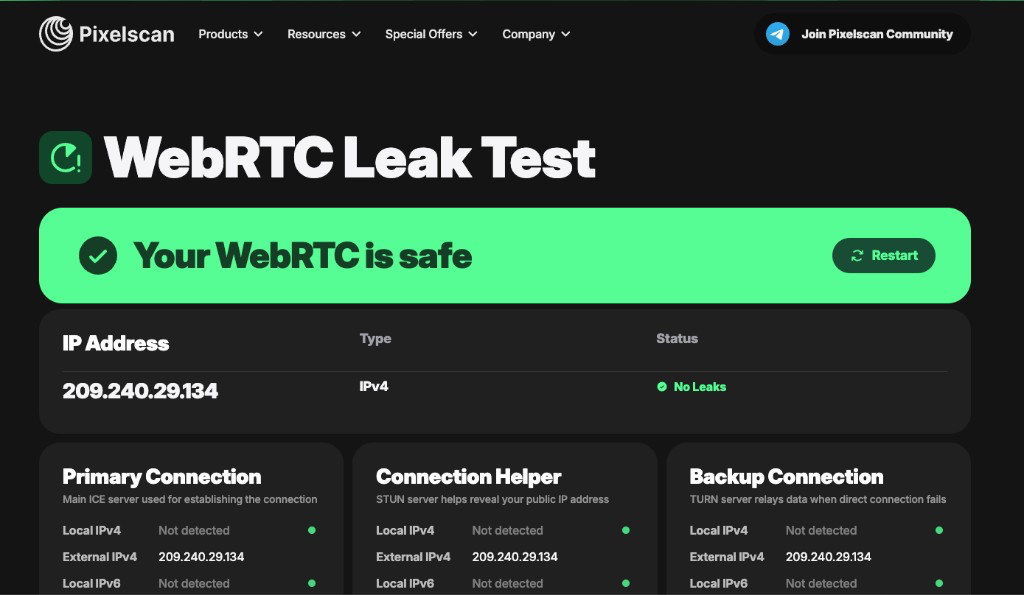
WebRTC enables real-time browser communication and can expose network address information during connectivity checks.
If a WebRTC test reveals an additional public address, compare it with the expected VPN or proxy connection.
An unexpected address may indicate a routing or privacy issue worth investigating.
Not every additional address is a leak. IPv4, IPv6, NAT, browser privacy protections and different routing paths can complicate the result.
DNS
A DNS leak test examines where DNS requests are being resolved.
If you expect DNS traffic to use a VPN provider but the test identifies an unexpected resolver, investigate the DNS configuration.
An unfamiliar DNS resolver does not necessarily mean your original IP address has been exposed. DNS forwarding, enterprise networks and resolver infrastructure can affect what appears in the report.
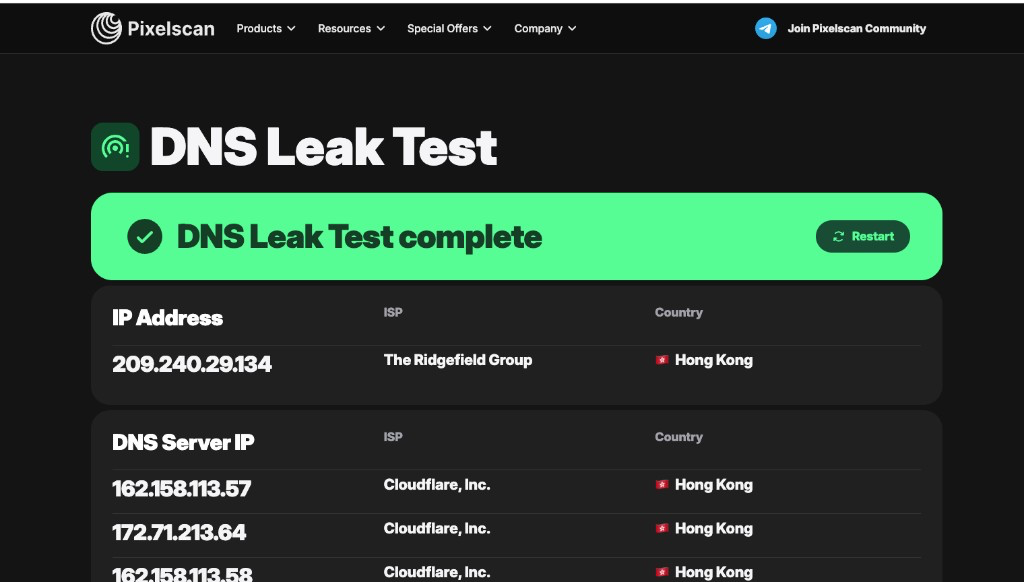
For a useful diagnosis, interpret WebRTC and DNS results alongside the actual network configuration.
What does a clean Pixelscan result mean?
A clean or consistent result is encouraging, but its meaning is narrower than it may first appear.
It suggests that the checks performed did not identify certain detectable problems under the conditions of that test.
It does not establish that:
- Every website will interpret the browser in the same way.
- A session cannot be linked to previous sessions.
- The connection has no reputation or abuse history.
- An account will avoid verification, restrictions or suspension.
- The browser is anonymous or impossible to identify.
Different websites observe different signals and use different detection methods. Some also consider account history, authentication events, behavioral patterns and other information that a public browser diagnostic page cannot access.
A fingerprint checker is best understood as a diagnostic tool, not a guarantee of anonymity or account safety.
Pixelscan’s limitations
Pixelscan brings multiple diagnostic checks into one place, which makes it convenient for inspecting a browser and network configuration.
There are still several limits to keep in mind.
Results represent a particular testing environment. The browser, network, extensions and system settings can change between sessions.
Not every inconsistency is harmful. Legitimate configurations may contain differences between network location, timezone, language and device characteristics.
Detection coverage is not universal. A website may collect additional signals or evaluate existing signals differently from Pixelscan.
A result needs context. An unusual value is most useful when you can compare it with the intended configuration and determine why the difference exists.
If a result looks suspicious, investigate the specific field instead of assuming the entire browser environment is invalid.
Pixelscan and EnvTrace: different ways to inspect an environment
Pixelscan and EnvTrace both provide browser and network diagnostics, but their reports should be read according to the checks and criteria each service exposes.
Pixelscan combines fingerprint analysis with several dedicated network and security-related checks.
EnvTrace focuses on showing browser and network signals and explaining how those signals relate to the current environment.
For example, you can use EnvTrace’s Browser Fingerprint Test to inspect browser properties and consistency-related findings, or its IP Address Check to examine network classification and risk signals.
Using two independent tools can provide additional context when a result is unclear. Differences between them may come from data sources, collection methods or interpretation rules.
Neither tool should be treated as a definitive prediction of how another website will evaluate an account or session.
When should you use Pixelscan?
Pixelscan is useful when you want to inspect what your current browser and connection reveal.
Common situations include checking a newly configured browser profile, verifying the public IP after changing networks, investigating a potential WebRTC or DNS leak, or comparing browser signals before and after a configuration change.
For meaningful comparisons, keep the testing conditions as consistent as possible and document any changes you make.
The goal is not necessarily to make every indicator appear normal. It is to understand what the browser exposes and whether the result matches the environment you intended to configure.
Final takeaway
Pixelscan is a practical starting point for examining browser fingerprints, IP information and network-related signals in one place.
Its results are most useful when read as individual observations rather than a single verdict.
Start with your browser and operating system, compare regional settings with your network exit, review Canvas and WebGL information, and investigate any unexpected WebRTC or DNS findings.
If something looks inconsistent, identify the signal and its possible causes before deciding whether a change is necessary.
A browser fingerprint test helps you understand the environment that websites can observe. It does not guarantee how those websites will respond.
Official tool: Pixelscan
Related EnvTrace tools: Browser Fingerprint Test · IP Address Check
Editorial note: This guide explains documented capabilities and general interpretation principles. It does not claim that EnvTrace conducted a controlled, hands-on benchmark of Pixelscan.