How to Read BrowserScan Results: IP, WebRTC, Canvas, and WebGL Explained
When you open BrowserScan, you may see dozens of results at once: IP, browser, OS, WebRTC, Canvas, WebGL, GPU, timezone, language, and more. The hard part is usually not running the test—it is knowing which results actually matter.
On this page
- Start with the browser fingerprint score
- IP: Is the website seeing the network you expect?
- WebRTC: Is another public IP being exposed?
- Browser and operating system: What environment does the browser present?
- Canvas: The hash itself is not “good” or “bad”
- WebGL and GPU: What graphics environment is being exposed?
- Timezone and language: Do they make sense for your actual setup?
- What do red results mean?
- If you only want a quick check, focus on these results
- How should you interpret BrowserScan overall?
- What BrowserScan cannot tell you by itself
When you open BrowserScan, you may see dozens of results at once: your IP address, browser, operating system, WebRTC, Canvas, WebGL, GPU, timezone, language, and more.
If this is your first time using BrowserScan, the main challenge is usually not running the test. It is understanding which results actually matter.
A simple way to read the page is: start with the network, then check the browser, and finally review device and rendering signals.
If you are not familiar with what BrowserScan can detect in the first place, start with What Is BrowserScan?.
You can think of the results in four groups:
| BrowserScan result | What it mainly tells you |
|---|---|
| IP / WebRTC | Which network path the website sees |
| Browser / OS | What browser and system your environment presents |
| Canvas / WebGL / GPU | What rendering and graphics environment is exposed |
| Timezone / Language | What regional settings the browser reports |
Start with the browser fingerprint score
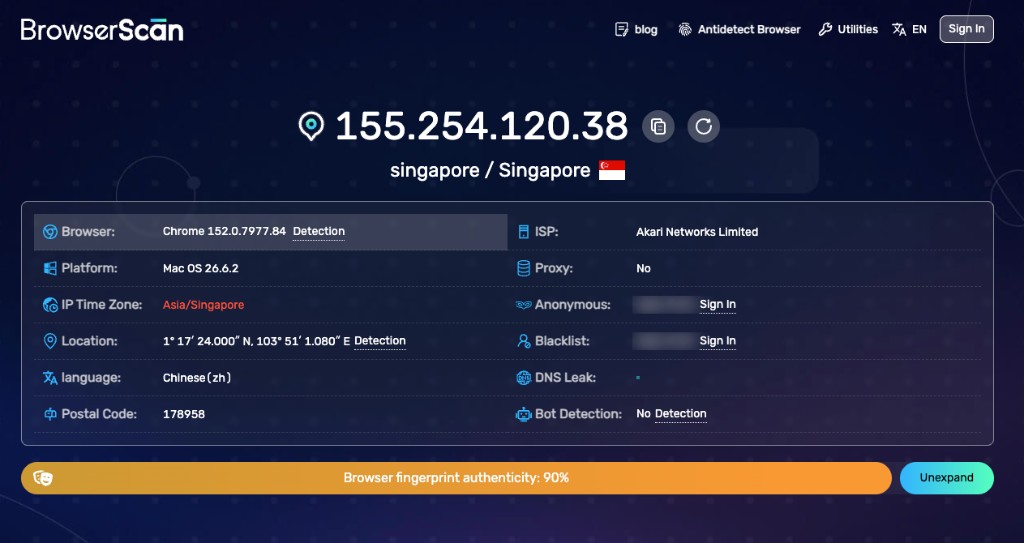
BrowserScan shows an overall browser fingerprint result near the top of the page and may highlight fields it considers worth reviewing.
The score is useful as a quick signal: do I need to look deeper into this environment?
But it should not be treated as a universal security score. For example, a score of 100% is better understood as: BrowserScan did not find an obvious issue within the signals it currently checks.
It does not mean:
- the browser is impossible to identify;
- every website will consider the environment normal;
- the environment is safe for every account or platform.
The score is best used as a starting point. The individual signals below it are more useful than the percentage itself.
IP: Is the website seeing the network you expect?
The IP address is usually the first result worth checking.
If you are not using a VPN or proxy, confirm that BrowserScan shows your normal public network.
If you are using a VPN or proxy, the more useful question is: is BrowserScan seeing the public IP that you intended websites to see?
For example, if you connect to a U.S. proxy but BrowserScan still shows your original network, the proxy may not be working as expected.
Country and network ownership are usually more useful than the exact city. IP geolocation depends on third-party databases, so the same IP may be placed in slightly different cities by different services. You usually do not need to worry if the country and network are correct but the city is nearby rather than exact.
WebRTC: Is another public IP being exposed?
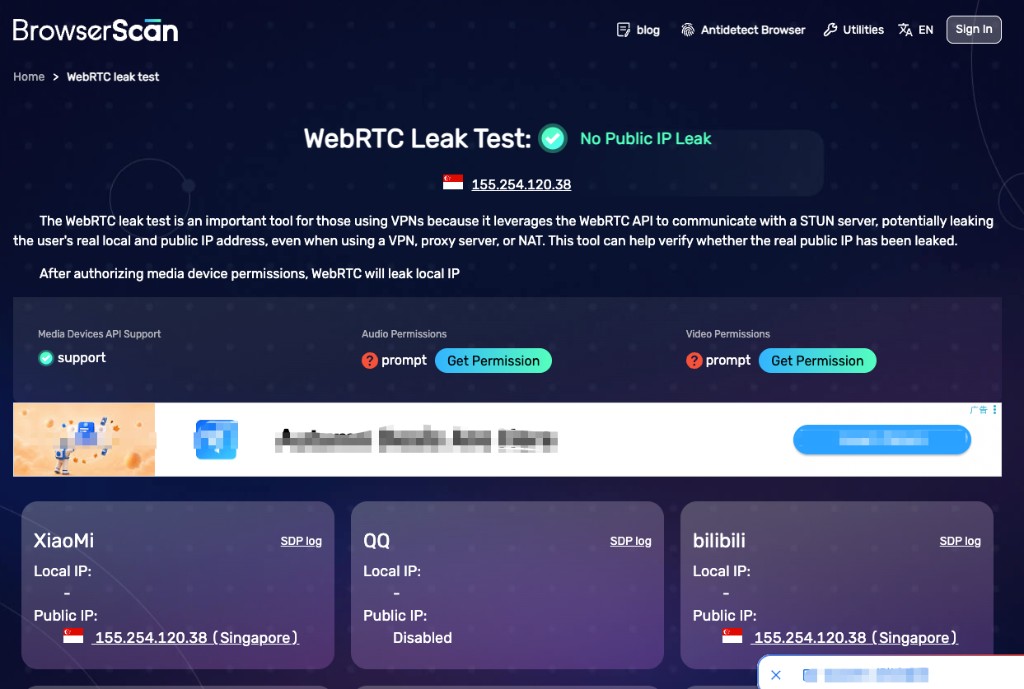
Next, compare the normal public IP shown by BrowserScan with the IP information detected through WebRTC.
A simple example:
- Public IP: U.S. IP A
- WebRTC public IP: U.S. IP A
In this case, BrowserScan is not showing an obviously different public network through WebRTC.
A result worth investigating would look more like:
- Public IP: U.S. proxy IP
- WebRTC public IP: a second IP associated with your local network
The main question is: did WebRTC reveal a public IP that you did not expect the website to see?
Do not automatically assume that multiple addresses mean a leak. IPv4, IPv6, VPN routing, NAT, and browser behavior can all make WebRTC results more complicated. The important part is whether the additional address makes sense in your actual network setup.
Browser and operating system: What environment does the browser present?
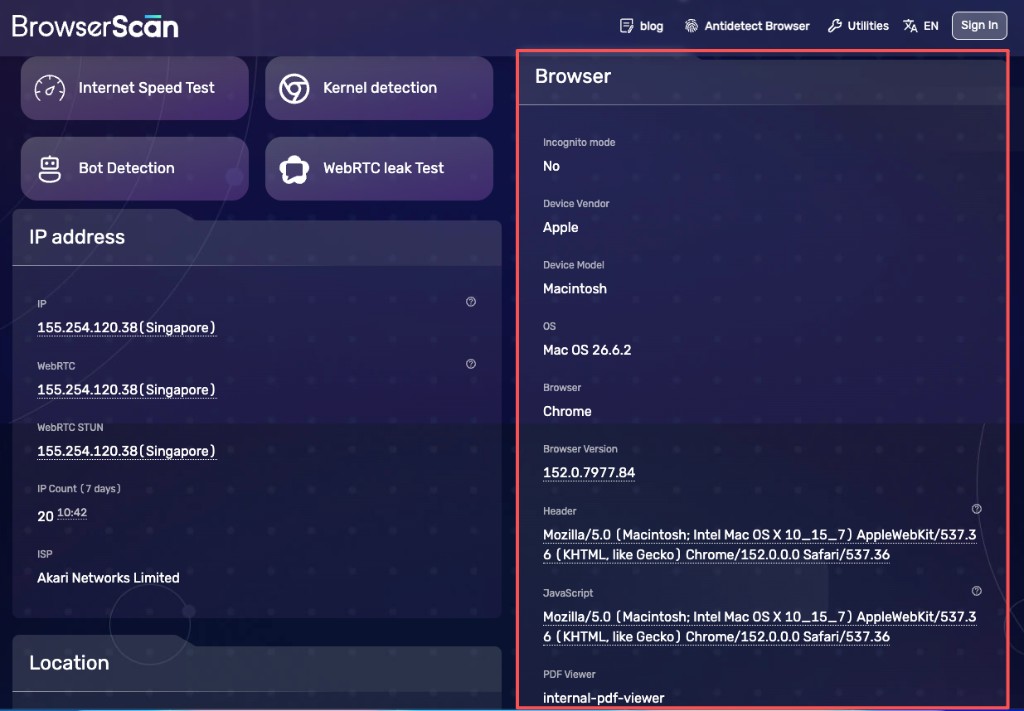
BrowserScan also reports information such as:
- browser name;
- browser version;
- operating system;
- User-Agent;
- browser capabilities.
Start with the obvious check: does BrowserScan identify the browser and operating system you are actually using?
If you are using Chrome on Windows and BrowserScan reports Chrome on Windows, the basic environment is consistent with what you expect.
The more interesting question is whether the browser’s declared identity matches its actual capabilities. For example, a browser may claim one version in its User-Agent while exposing features associated with another version.
You can think of this as the difference between what the browser says it is and what the browser appears capable of doing. If those do not line up, BrowserScan may flag the difference.
Canvas: The hash itself is not “good” or “bad”
BrowserScan displays a Canvas fingerprint result.
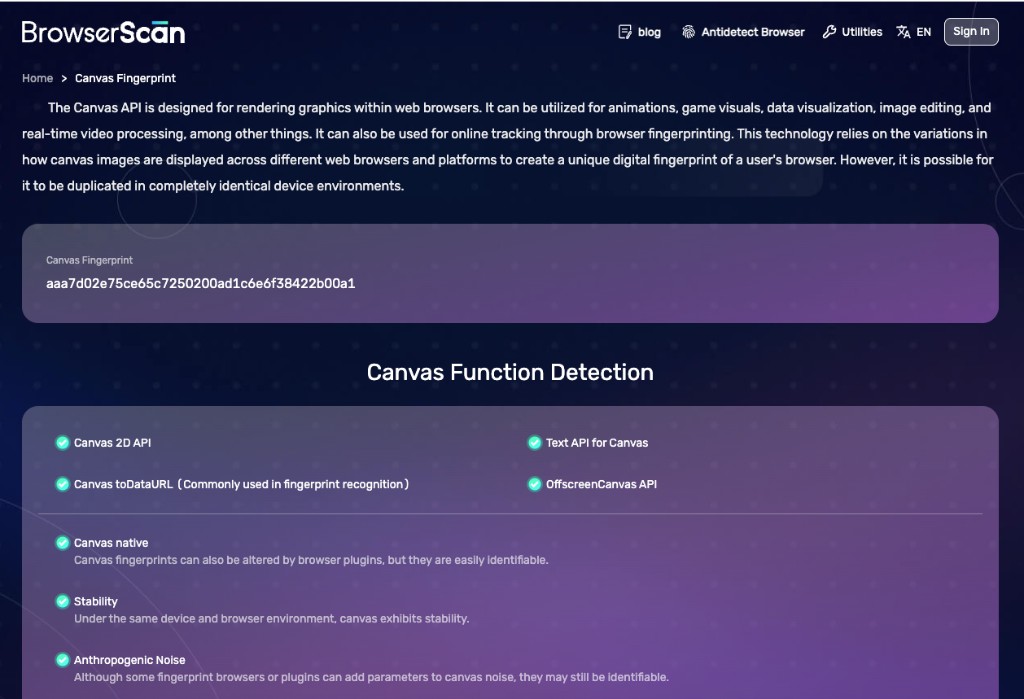
For most users, there is no need to interpret the actual hash value. You only need to understand that BrowserScan is using the Canvas result as one signal describing the browser’s rendering environment.
A different Canvas result does not automatically mean this is a different device. And the same Canvas result does not prove this is the same device.
In BrowserScan, Canvas is most useful as one part of the broader environment rather than something to judge in isolation. For how Canvas fingerprinting works in general, see What is browser fingerprinting?.
WebGL and GPU: What graphics environment is being exposed?
BrowserScan may also show GPU vendor, renderer, WebGL information, and other graphics-related values.
For most users, the useful question is not whether every WebGL value is “correct.” Instead, ask: does the graphics environment roughly make sense for the browser and system I am using?
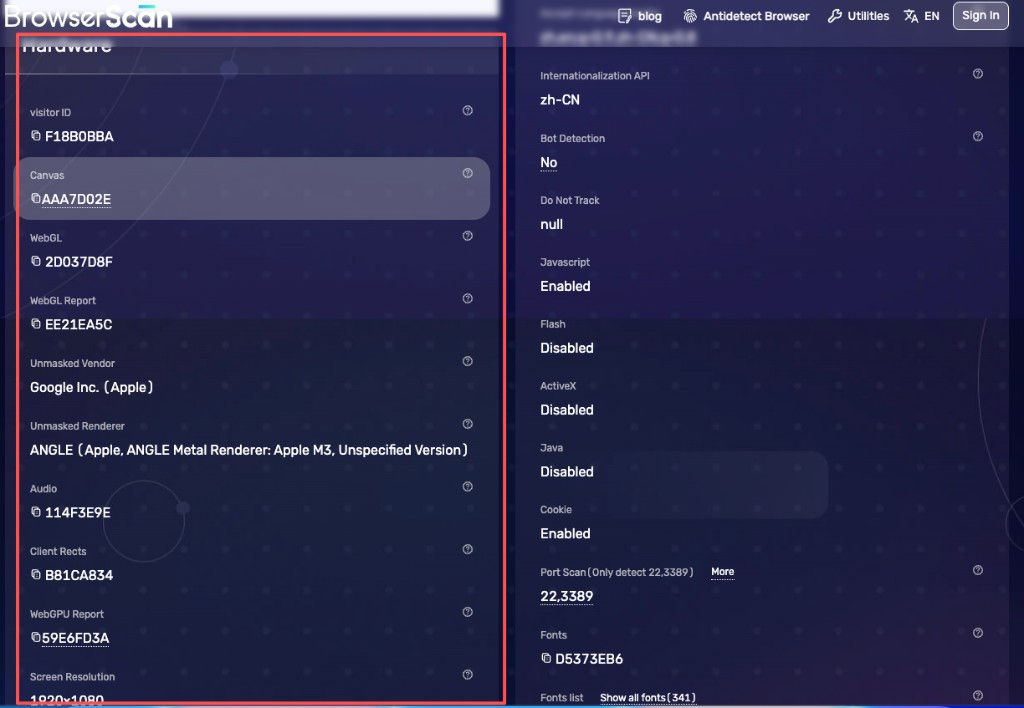
For example, the operating system, browser, and reported GPU environment should usually form a combination that can be reasonably explained.
WebGL and GPU results describe the graphics environment exposed to the website. They are not unique hardware identifiers. So the goal is not to find a “perfect” renderer value—it is to understand what graphics environment the browser is presenting. For field-by-field background, see What is a WebGL fingerprint?.
Timezone and language: Do they make sense for your actual setup?
BrowserScan also shows regional settings such as:
- IP-based timezone;
- local browser timezone;
- browser language;
- locale-related information.
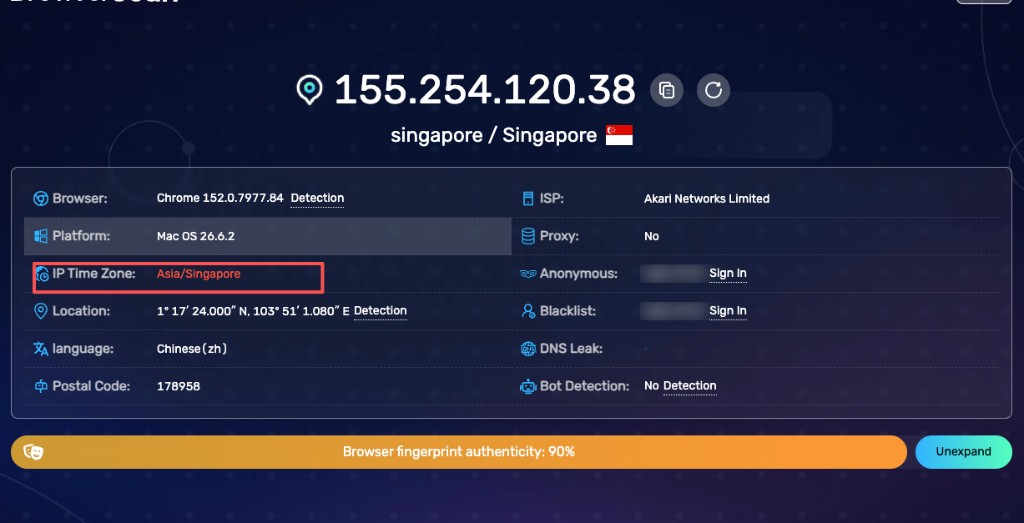
Suppose the page shows:
- IP location: United States
- Browser timezone: Asia/Shanghai
- Language: zh-CN
That simply tells you that the network location, local timezone, and browser language are not all pointing to the same region. That is not automatically a problem.
A Chinese-speaking user may be traveling in the U.S., using a U.S. VPN, or simply keeping the computer set to China time. So the right question is: does this combination make sense for how I am actually using the browser?
Language should generally be interpreted even more loosely than timezone. People can use any browser language regardless of where they are physically located.
What do red results mean?
If BrowserScan highlights a field in red, the safest interpretation is: BrowserScan thinks this value is worth reviewing.
It does not automatically mean:
- the environment is dangerous;
- an account will be banned;
- another website will reach the same conclusion.
BrowserScan only evaluates the signals it can observe using its own rules. A platform such as Google, Facebook, TikTok, or Amazon may also use account history, cookies, server-side signals, login patterns, and other data that BrowserScan cannot see.
So a red result tells you something about the BrowserScan test, not about how every other platform will treat the environment.
If you only want a quick check, focus on these results
You do not need to inspect every BrowserScan field. A practical reading order is:
IP → WebRTC → Browser / OS → Timezone → WebGL / GPU → Canvas
This covers most of the questions people actually care about. Once those results make sense, you can move on to more detailed signals such as fonts, Audio, Client Rects, or WebGPU if you have a specific reason to investigate further.
How should you interpret BrowserScan overall?
The easiest way to think about the page is:
| BrowserScan section | What it helps you understand |
|---|---|
| IP / location / ISP | The network path visible to the website |
| WebRTC | Whether the browser exposes additional network information |
| Browser / OS / timezone / language | The software and regional environment presented by the browser |
| Canvas / WebGL / GPU / hardware | The rendering and device-related environment exposed to the website |
The important question is not “is every field correct?” It is: do the results BrowserScan shows make sense for the browser, device, and network environment I am actually using?
What BrowserScan cannot tell you by itself
BrowserScan is useful for inspecting the browser and network environment, but its results should not be treated as proof of identity or as a prediction of how another platform will behave.
For example:
- the same Canvas result does not prove two visits came from the same device;
- different fingerprints do not prove two visits came from different people;
- a 100% BrowserScan score does not mean every website will consider the environment normal;
- a timezone that differs from the IP location does not automatically mean something is wrong.
BrowserScan is best used as a way to inspect what your browser and network environment expose to a website. It is not a replacement for the risk models used by third-party platforms.
When reading BrowserScan, do not focus only on the overall score. Start with IP and WebRTC to understand the network path. Then check browser, OS, timezone, and language for the basic software and regional environment. Finally review Canvas, WebGL, GPU, and other detailed signals for the rendering and device environment exposed to the website.
The most useful question is not “is this value good?” It is: “do these results make sense together for the environment I am actually using?” That is the most practical way to read BrowserScan without overinterpreting individual fingerprint values.