What Is BrowserScan? Browser Fingerprint, IP, and Environment Checks Explained
BrowserScan is an online browser environment checker that shows what a website can observe about your current browser, device, and network—from IP and WebRTC to Canvas, WebGL, timezone, and language.
On this page
- What is BrowserScan used for?
- What can BrowserScan check?
- What does BrowserScan’s fingerprint score mean?
- BrowserScan includes more than browser fingerprinting
- How do you use BrowserScan?
- Who is BrowserScan useful for?
- What can BrowserScan tell you — and what can it not tell you?
- Which BrowserScan results matter most?
- Summary: What is BrowserScan?
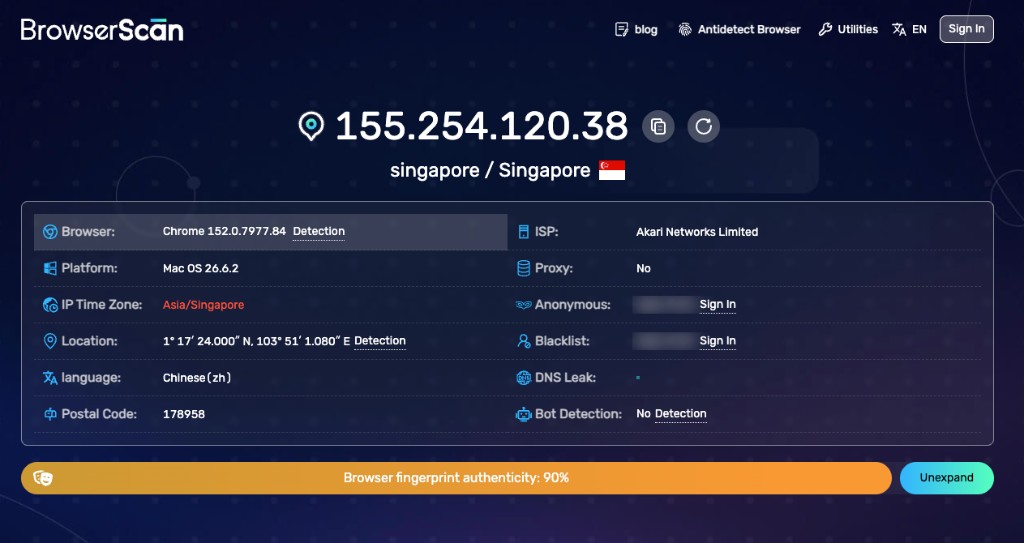
BrowserScan is an online browser environment checker that shows what a website can observe about your current browser, device, and network environment.
When you open BrowserScan, it can display information such as:
- IP address and network details
- browser and operating system
- User-Agent
- Canvas
- WebGL and GPU
- WebRTC
- timezone and language
- screen and device information
- fonts and other browser signals
It is useful when you want to understand: what does my browser actually expose to a website?
BrowserScan itself is not an antidetect browser, VPN, or proxy service. Its main purpose is to inspect the environment that your browser and network present to websites.
This guide explains what BrowserScan checks, how its main features are organized, who it is useful for, and what its results can and cannot tell you. When you are ready to read a live report field by field, see How to Read BrowserScan Results.
What is BrowserScan used for?
The simplest way to think about BrowserScan is: it lets you inspect your browser and network from a website’s point of view.
Instead of checking your computer internally, BrowserScan looks at the information that a normal website can observe through browser requests, JavaScript, browser APIs, and network connections.
That includes signals from several layers:
- network
- browser
- operating system
- graphics environment
- regional settings
- device capabilities
This makes BrowserScan useful for checking whether the environment you think you are using is the same environment that websites are actually seeing.
What can BrowserScan check?
BrowserScan covers several categories of browser and network information.
1. IP and network information
BrowserScan shows your current public IP address and related network data.
Depending on the result, you may see information such as:
- IP address
- country or region
- city
- ASN
- ISP or network provider
- timezone
- proxy-related information
- anonymous network indicators
- blacklist or reputation-related data
This is useful if you are using a VPN, proxy, remote environment, or another network setup and want to confirm which public IP the website can see.
The most important question is usually: is this the network exit I expected to be using?
Exact IP geolocation should not be treated as precise physical location data. Different IP databases may map the same address to nearby but different locations.
2. WebRTC checks
BrowserScan also provides WebRTC testing.
WebRTC is a browser technology used for real-time communication, but it can also expose information about network interfaces and connectivity.
For users who rely on VPNs or proxies, this is useful because the page can help reveal whether WebRTC exposes an additional public network address.
A practical way to use this result is to compare the public IP shown by the page with the public IP information exposed through WebRTC. If the two reveal completely different network exits, the result may be worth investigating further.
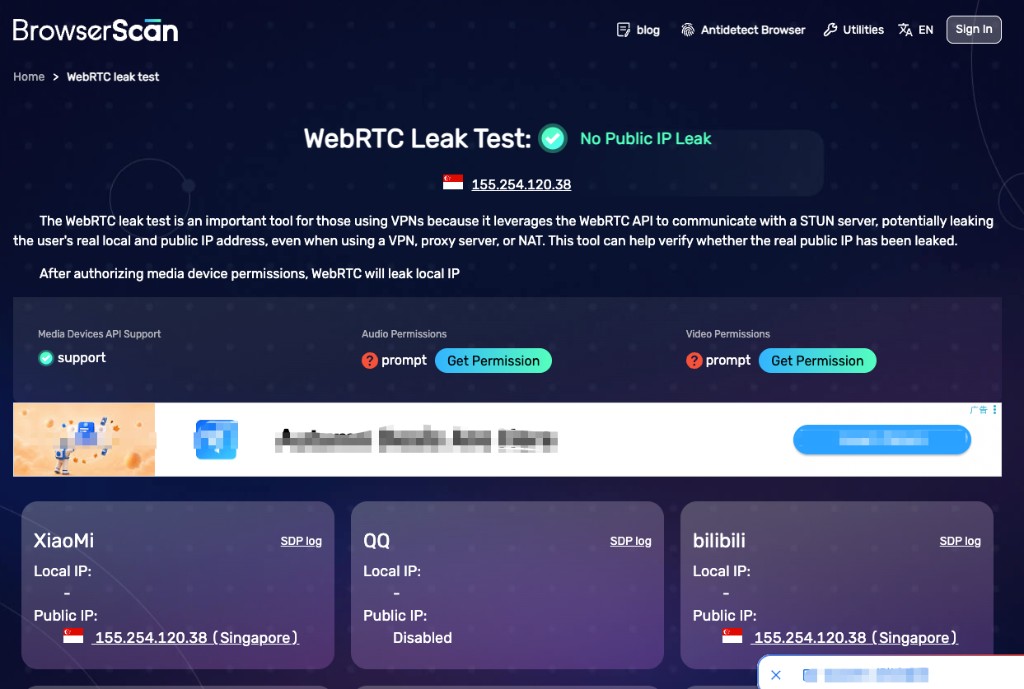
Do not automatically assume that multiple addresses mean a leak. IPv4, IPv6, VPN routing, NAT, and browser behavior can all complicate WebRTC results.
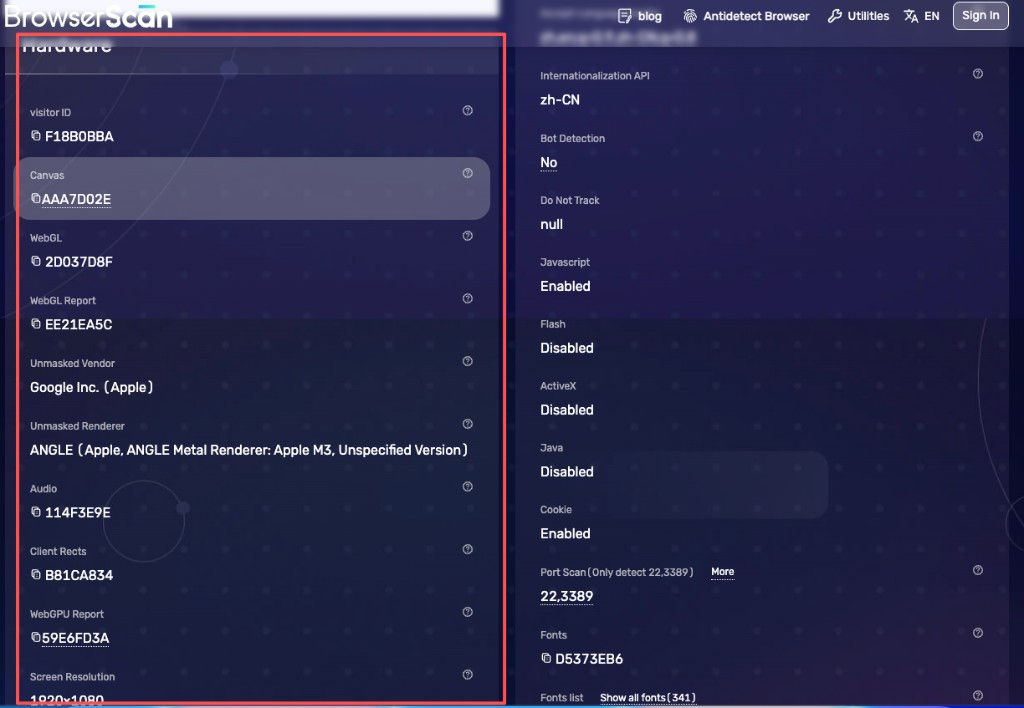
3. Canvas, WebGL, and graphics information
BrowserScan checks several rendering-related signals, including Canvas, WebGL, GPU vendor, GPU renderer, WebGPU, Audio, and Client Rects.
These signals describe parts of the browser’s graphics and rendering environment.
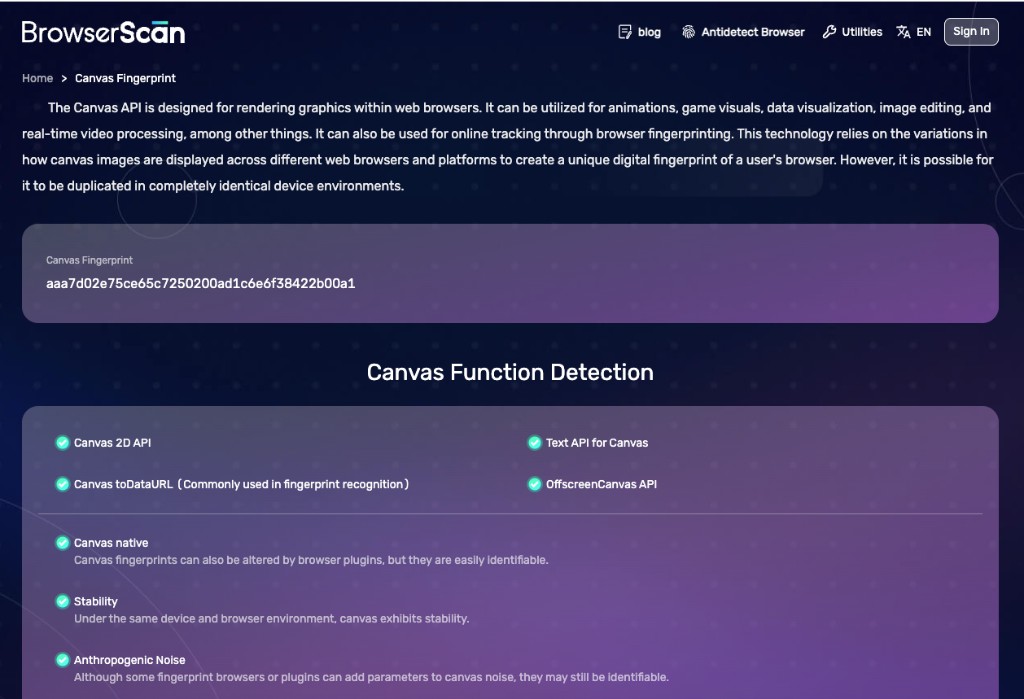
Canvas
BrowserScan can generate a Canvas result based on how the current browser renders specific content. The important point is not the hash string itself—the result helps describe how the current browser environment renders graphics. Canvas should be treated as one browser signal, not as a unique hardware ID.
WebGL and GPU
BrowserScan can also show graphics-related information such as the exposed GPU vendor, renderer, and WebGL capabilities. This helps users understand what graphics environment the browser presents to websites. These values should not be treated as a physical GPU serial number—they represent what the browser exposes.
4. Browser, operating system, and User-Agent
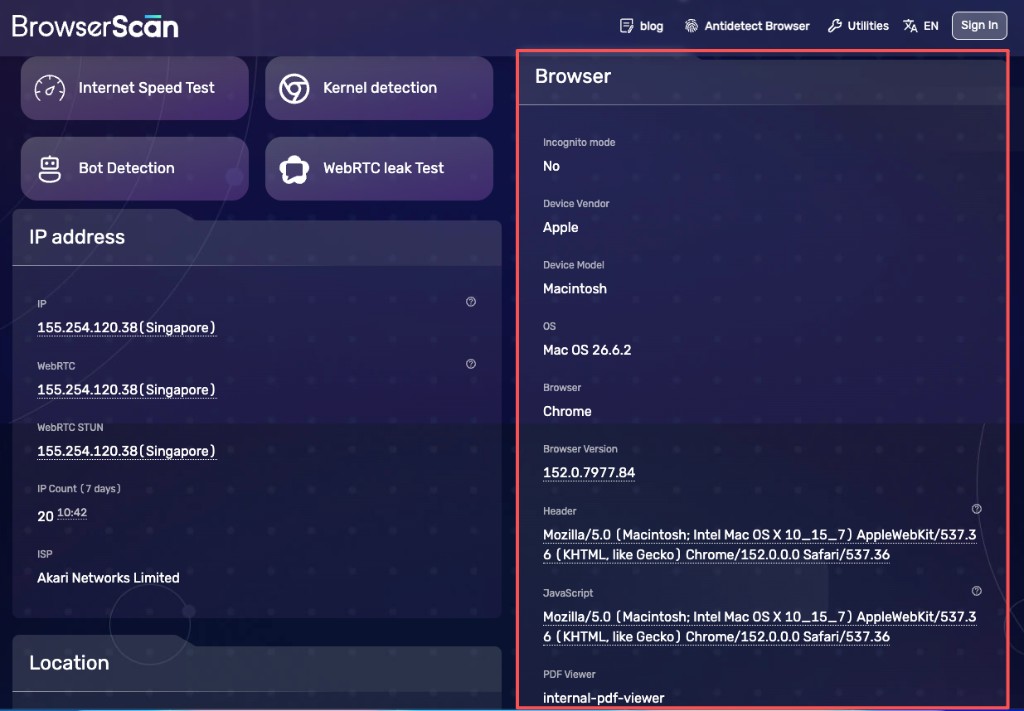
BrowserScan also reports basic browser identity information, including browser name, version, operating system, User-Agent, browser capabilities, and Client Hints.
This helps answer: what browser and system does this environment appear to be using?
BrowserScan also includes browser engine checks that can compare the browser’s declared identity with the features it actually supports. For example, a browser might claim one version in its User-Agent while exposing capabilities associated with another version. That kind of mismatch can be useful when reviewing a customized browser environment.
5. Timezone, language, and regional settings
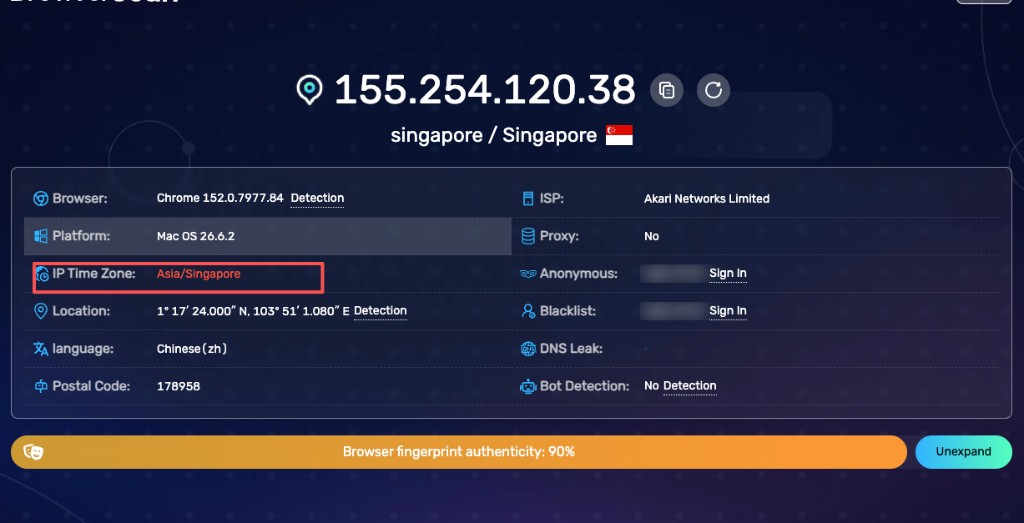
BrowserScan also shows regional settings such as IP-based timezone, browser timezone, browser language, Accept-Language, locale-related information, and local time.
These results are useful when you want to understand how your regional environment appears to websites.
For example:
- IP location: United States
- Browser timezone: Asia/Shanghai
- Browser language: zh-CN
That combination is not automatically wrong. A user may be traveling, working remotely, using a VPN, or simply keeping their preferred language and timezone settings. These values are better understood as regional environment signals rather than direct proof of physical location.
6. Screen, fonts, and device-related information
BrowserScan can also display information related to the device environment, such as screen resolution, available screen size, color depth, touch support, hardware concurrency, device memory, fonts, and media devices.
These values help describe the environment, but they do not give a website a complete hardware inventory. For example, knowing the browser reports eight logical processors does not tell the website the exact CPU model. The value comes from combining multiple signals rather than relying on one field.
What does BrowserScan’s fingerprint score mean?
One of BrowserScan’s most visible results is its overall browser fingerprint score or “fingerprint authenticity” indicator. BrowserScan may also highlight fields it considers worth reviewing.
The safest way to interpret that score is: it is BrowserScan’s own assessment of the environment it can observe. It is not a universal browser safety score.
A high score does not mean the browser cannot be fingerprinted, every website will trust the environment, an account is guaranteed to be safe, or the environment is anonymous. Likewise, a lower score does not automatically mean that something is dangerous.
The score is most useful as a shortcut: if it changes, check which individual signals caused the change.
The homepage authenticity bar (see the overview screenshot above) is a starting point—not a substitute for reading IP, WebRTC, browser, timezone, and graphics fields together.
BrowserScan includes more than browser fingerprinting
BrowserScan has grown beyond a single fingerprint test. It also provides separate tools for areas such as:
- IP lookup
- WebRTC leak testing
- DNS leak testing
- Canvas testing
- browser engine detection
- User-Agent parsing
- Client Hints
- WebGPU reporting
- HTTP/2 and TLS-related testing
- bot detection
- timezone checks
- media device checks
- port scanning
- speed testing
- password generation
- 2FA code generation
Because of this, it is more accurate to describe BrowserScan as a browser and network environment testing website rather than simply a Canvas or browser fingerprint checker.
How do you use BrowserScan?
For most users, the workflow is straightforward.
Step 1: Open BrowserScan in the browser you want to test
Use the actual browser or profile you want to inspect. BrowserScan shows the environment exposed by the browser that is currently visiting the site.
Step 2: Check the top-level environment
Start with the basics: IP, browser, operating system, location, timezone, language, ISP, proxy-related results, WebRTC, and DNS. This gives you a quick overview of what the website sees.
Step 3: Review the network
If you use a VPN or proxy, check public IP, ASN, location, WebRTC, DNS, and IPv4 / IPv6. The main goal is to confirm that the network path matches what you intended to use.
Step 4: Review browser and device signals
Then look at User-Agent, browser version, Canvas, WebGL, GPU, screen, fonts, and device capabilities. This shows what browser and rendering environment is exposed.
Step 5: Look at the relationships between signals
This is more useful than judging each field individually. For example: does the browser version match its capabilities? Does the graphics environment make sense for the reported OS? Does WebRTC expose an unexpected network? Does the timezone make sense for the current setup?
The value of BrowserScan comes from seeing many signals together.
Who is BrowserScan useful for?
Users who want to see what websites can observe
If you simply want to know what a website can see about your browser, BrowserScan gives a fairly detailed answer. It turns abstract concepts such as Canvas, WebGL, WebRTC, and browser fingerprinting into visible results.
VPN and proxy users
BrowserScan can help verify public IP, location, ASN, WebRTC, DNS, and network-related browser signals when checking whether a VPN or proxy is behaving as expected.
Antidetect browser users
BrowserScan is also commonly used to inspect browser profiles created with fingerprint or antidetect browsers. In this case, BrowserScan acts as an environment verification tool rather than the browser itself.
Developers and privacy researchers
BrowserScan is useful when comparing how different browsers, operating systems, privacy settings, or browser APIs expose information. It can provide a quick overview of many fingerprint-related signals in one place.
What can BrowserScan tell you — and what can it not tell you?
BrowserScan can help you observe your public network, browser identity, operating system information, rendering signals, WebRTC, regional settings, device-related information, and relationships between different environment signals.
But BrowserScan cannot prove who the real person behind a browser is, how a specific third-party platform will score the environment, whether an account will be restricted, whether an environment is “completely anonymous,” or whether two matching fingerprints belong to the same person.
A website such as Google, Facebook, TikTok, or Amazon may use many additional signals that BrowserScan does not have access to, including account history, cookies, login history, server-side behavior, risk systems, and internal device and session data.
So BrowserScan is best used as a way to inspect your browser and network environment, not as a replacement for another platform’s internal risk system.
Which BrowserScan results matter most?
If you are using BrowserScan for the first time, you do not need to inspect every field. Start with these:
- IP and location — confirm the public network being exposed.
- WebRTC — check whether an unexpected network address appears.
- Browser and User-Agent — confirm what browser and operating system the environment presents.
- WebGL and GPU — review the graphics environment exposed to the website.
- Timezone and language — check whether the regional settings make sense for your actual setup.
Canvas, fonts, Audio, Client Rects, and WebGPU can be useful when you need a deeper review. For a practical reading order on a live report, see How to Read BrowserScan Results.
Summary: What is BrowserScan?
BrowserScan is best understood as an online tool for inspecting the browser, device, and network environment that a website can observe.
It brings together information such as IP and network data, browser and operating system, Canvas, WebGL and GPU, WebRTC and DNS, timezone and language, screen and fonts, and browser capabilities.
Its main value is not any single fingerprint hash or percentage. The useful part is being able to see what your browser and network are exposing, and whether those signals make sense together for the environment you are actually using.