On this page
- What Is CreepJS Used For?
- How to Run a CreepJS Fingerprint Test
- Does “38% Like Headless” Mean Your Browser Was Detected?
- Is MacIntel Together With Apple M3 a Fingerprint Problem?
- What Do WebGL, Canvas, Fonts, and Other Hashes Mean?
- Does a WebRTC IP Address Mean Your Real IP Leaked?
- Should Lies and Resistance Always Be Zero?
- Which CreepJS Results Actually Need Attention?
- CreepJS vs. EnvTrace: Which One Should You Use?
- Final Takeaway
If you use an anti-detect browser, a separate browser profile, a proxy, or a VPN, you may have tried CreepJS to check your browser fingerprint. But its report can be overwhelming: hashes, technical labels, and percentages appear everywhere. Does “38% like headless” mean your browser has been detected as a bot? Is a WebRTC IP address a leak? Should you worry when WebGL and device information look different?
The short answer: CreepJS is a browser diagnostics tool, not an account-safety score. You don’t need to understand every hash or make every result look perfect. What matters is whether the information matches your actual setup, and whether any unexpected signal is worth investigating.
Official test: CreepJS on GitHub Pages · Source code: CreepJS on GitHub
Use the test linked from the project’s official repository rather than assuming that every site using the CreepJS name is affiliated with the original project.
What Is CreepJS Used For?
CreepJS shows technical characteristics that a website can observe about your browser, including device and graphics information, fonts, language settings, and certain network-related signals.
For someone using browser profiles or proxies, it’s especially useful when you want to:
- Check a new browser profile before using it.
- Compare results before and after a browser update or settings change.
- Investigate an unexpected browser or hardware value.
- Understand what WebRTC and graphics tests are exposing.
However, CreepJS cannot tell you whether Facebook, TikTok, Amazon, or another platform will restrict an account. Those platforms can consider account history, authentication, policies, and other information beyond a public fingerprint test.
How to Run a CreepJS Fingerprint Test
- Open the official CreepJS test in the browser profile you actually want to check.
- Wait for the report to finish collecting results.
- Start with Headless, device/browser information, and WebRTC. You can leave the detailed hashes for later.
- Compare the reported information with your real device, browser, and network settings.
- If something looks unexpected, save the report and investigate that specific item rather than changing everything at once.
The screenshots below come from one real test session. They illustrate how to read the report; they are not a benchmark across different browsers or proxy providers.
Does “38% Like Headless” Mean Your Browser Was Detected?
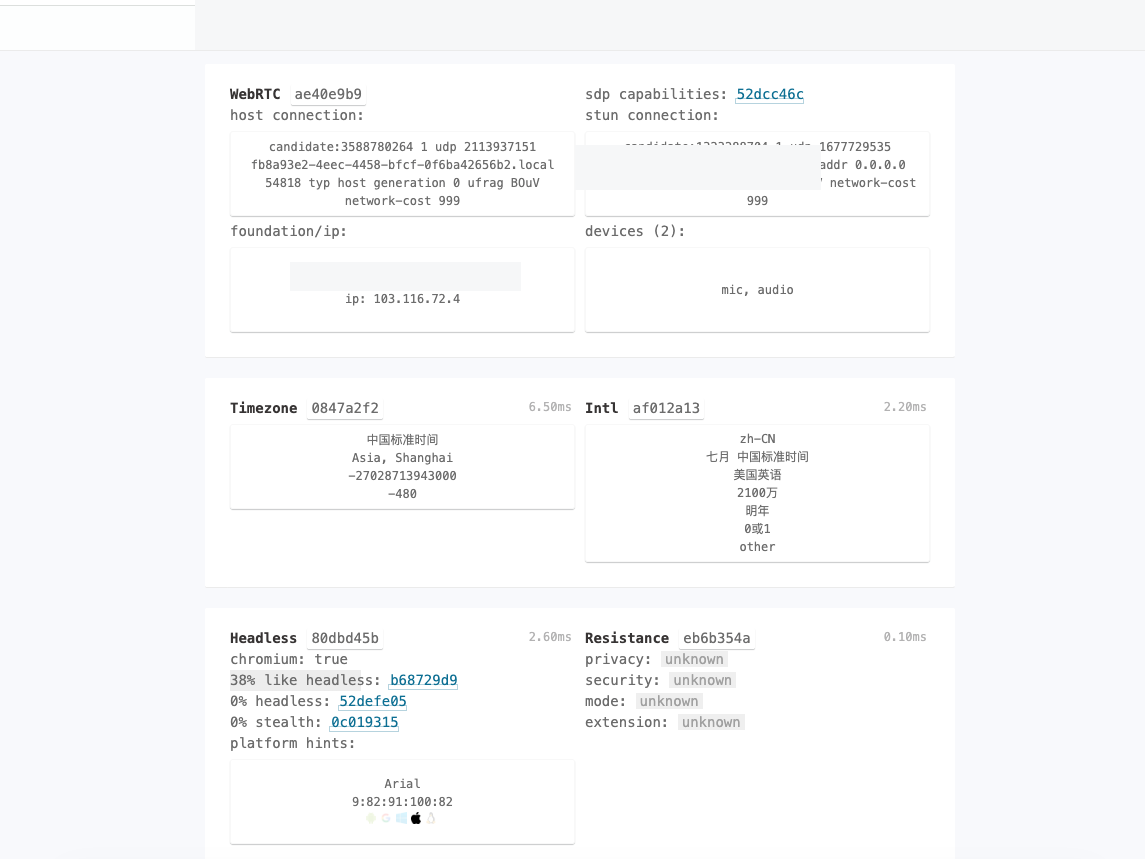
Figure 1. The report shows “38% like headless,” “0% headless,” and “0% stealth.” These are CreepJS indicators—not probabilities of account detection or bans.
In the example above, CreepJS displays three separate values:
- 38% like headless
- 0% headless
- 0% stealth
“38% like headless” does not mean that Facebook or TikTok has a 38% chance of identifying or blocking your browser. It is an indicator produced by CreepJS’s own checks for characteristics associated with headless browsing. The other two values reflect separate checks.
The three numbers alone do not establish that the browser is running in headless mode, and they do not predict how any particular website will respond.
What should you do? If you’re using normal Chrome with a visible browser window, confirm that the detected browser and system match your actual setup. If you’re testing a modified or anti-detect browser profile, run the same test in regular Chrome on the same device and network for comparison.
The goal is to understand what changed between environments, not to chase a perfect score.
Is MacIntel Together With Apple M3 a Fingerprint Problem?
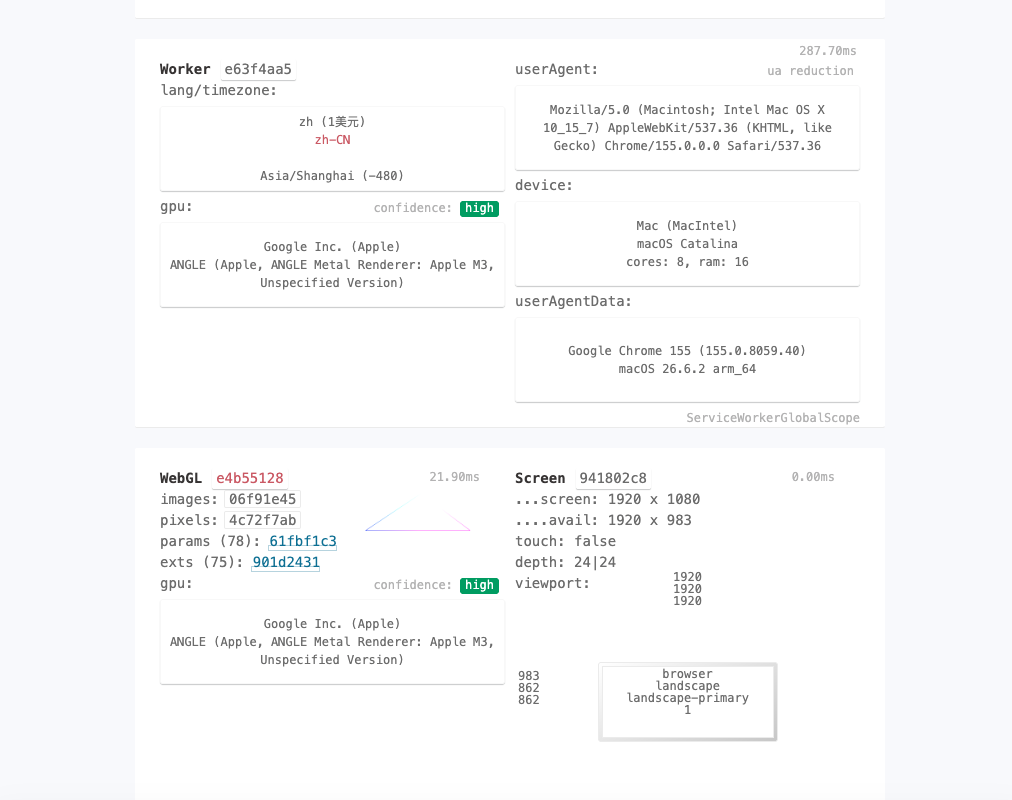
Figure 2. The report includes MacIntel identifiers alongside Apple M3 graphics information and an arm_64 architecture value. These can come from different browser interfaces.
The report contains several details that may look contradictory at first:
| Where it appears | Observed information | How to interpret it |
|---|---|---|
| User-Agent | Intel Mac OS X identifier | A traditional compatibility identifier sent by the browser |
| Device / Worker | MacIntel | A platform label that may also reflect compatibility behavior |
| GPU / WebGL | Apple M3 | Information about the graphics environment |
| User-Agent Client Hints | macOS, arm_64 | Platform information reported through a different browser interface |
These values appearing together do not automatically mean the fingerprint was spoofed. On Apple Silicon Macs, browsers may still expose Intel Mac identifiers for compatibility while other interfaces report ARM architecture or Apple graphics hardware.
The screenshot also does not establish that CreepJS flagged this combination as an error.
If you’re using an Apple M-series Mac, this may be a reasonable explanation. Investigate further only when a reported value clearly conflicts with your actual device or profile configuration and you cannot explain the difference.
What Do WebGL, Canvas, Fonts, and Other Hashes Mean?
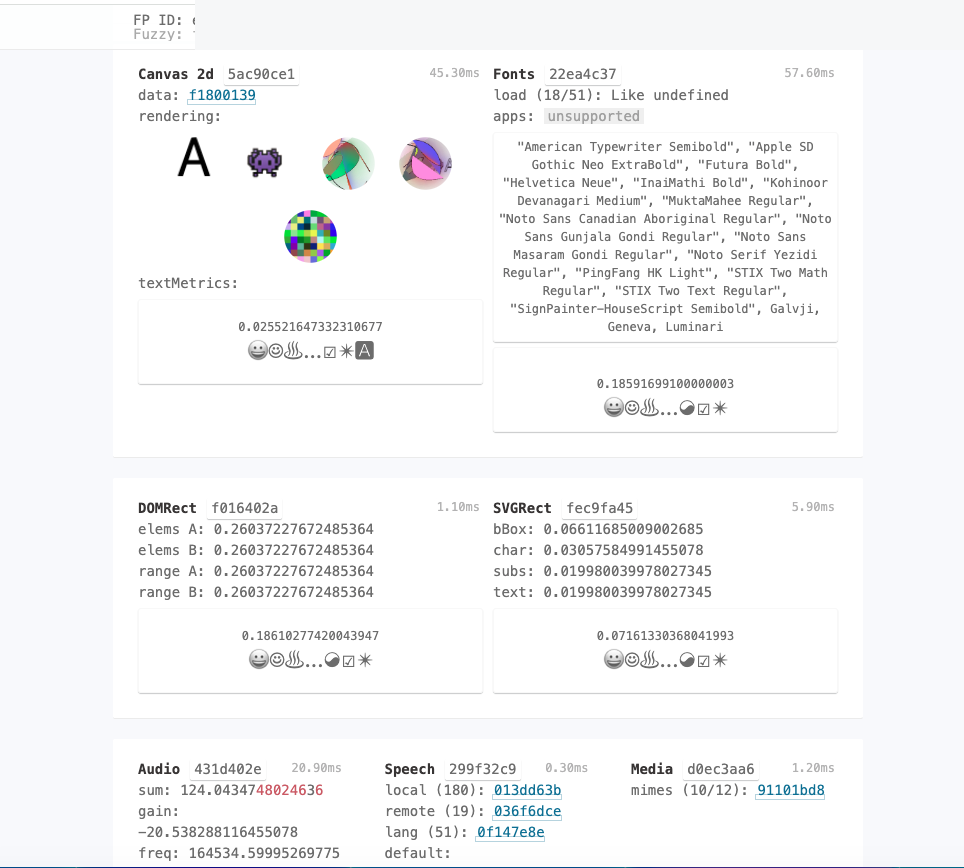
Figure 3. CreepJS displays Canvas 2D, Fonts, Audio, and other test outputs. Most users do not need to interpret each fingerprint hash individually.
CreepJS can turn the results of browser tests into short strings or hashes. These make it possible to compare observable characteristics, but the strings themselves are not simple pass/fail grades.
Here’s what the main categories mean in everyday language:
| Field | Plain-English meaning |
|---|---|
| Canvas | How your browser draws certain graphics |
| WebGL | Graphics capabilities and rendering information |
| Fonts | Fonts and text-rendering behavior visible to a website |
| Audio | Results associated with browser audio processing |
| Worker | Information available in a separate browser execution context |
Three rules are useful here:
Different hashes are not automatically bad. Different devices, browser versions, graphics drivers, or fonts may produce different results.
Matching hashes do not make you anonymous. A stable value may still help a website recognize a returning browser.
Changes are most useful when compared under similar conditions. If you haven’t changed your device, browser, or settings but a key result changes repeatedly, that may deserve a closer look.
Don’t modify your GPU, fonts, or Canvas settings just to force a particular hash value.
Does a WebRTC IP Address Mean Your Real IP Leaked?
The WebRTC section in the first screenshot includes a public IP address and network candidate information.
Seeing an IP address in WebRTC is not enough to conclude that a leak happened. You also need to know the expected browser traffic exit, the proxy or VPN configuration, and which network owns the observed address.
A practical way to check is:
- Open the EnvTrace IP Address Check in the same browser profile to see the public IP used for the web connection.
- Run the EnvTrace WebRTC Leak Test to examine addresses exposed through WebRTC.
- Compare the results and investigate any unexpected public address that the VPN or proxy was supposed to hide.
IPv4 and IPv6 can complicate the comparison. Two different address strings do not necessarily represent a privacy leak, particularly on dual-stack networks.
Also, a clean WebRTC result does not prove that the browser cannot be fingerprinted. Network exposure and browser fingerprinting are related, but different, questions.
Should Lies and Resistance Always Be Zero?
CreepJS may also show fields such as Lies and Resistance, which relate to unusual browser API behavior, modified signals, or privacy defenses.
For a non-technical reader, treat these as clues to investigate, not as direct evidence that an account is unsafe. Extensions, privacy features, and compatibility behavior may all affect what browser interfaces report.
If a specific warning appears, inspect the related field and compare it with your browser settings. If a value shows unknown, don’t silently interpret it as a pass.
The screenshots used here do not clearly show a complete Lies count or a specific Lies warning. We therefore cannot claim that this test confirmed a particular lie or identify its cause.
Which CreepJS Results Actually Need Attention?
| What you see | What it may mean | Best next step |
|---|---|---|
| “38% like headless” | A CreepJS indicator, not an account-risk probability | Compare with regular Chrome if the result is unexpected |
| MacIntel plus Apple M3 | Could reflect normal browser compatibility behavior | Confirm the real device and browser |
| Different Canvas or WebGL hashes | Could reflect differences in rendering or configuration | Compare tests under the same conditions |
| An unexpected public WebRTC IP | A different network route may be visible | Check the address and your proxy/VPN routing |
| Lies or Resistance warnings | Some browser signals may have been modified or behave unusually | Open the detailed finding before changing settings |
| Unknown result | The test hasn’t established a clear conclusion | Treat it as unknown, not as a successful check |
If you’re using a browser profile for work, focus on unexpected differences that you can verify. Trying to make every label green can lead to unnecessary changes and make troubleshooting harder.
CreepJS vs. EnvTrace: Which One Should You Use?
CreepJS provides an extensive technical view of browser behavior. It’s useful if you want to examine low-level fingerprint signals, but its report can be difficult to interpret without a technical background.
EnvTrace Browser Fingerprint Test is designed to make browser environment checks easier to understand. It organizes findings about browser identity, APIs, graphics and hardware, cross-context signals, and stability, with explanations of items that need attention or further confirmation.
If you’re using an anti-detect browser or a proxy, you can use CreepJS to explore detailed signals and EnvTrace to help interpret whether your current browser environment presents inconsistencies worth checking.
The two tools use different methods. Their results should be compared field by field, not as if one score could be converted into another.
Final Takeaway
CreepJS can show you a great deal about what your browser reveals to websites, but you don’t need to understand every technical field to benefit from it.
Start with three questions:
- Does the report match the device and browser you’re actually using?
- Is WebRTC exposing any public network address you didn’t expect?
- Do important signals change unexpectedly when you repeat the test under the same conditions?
A “38% like headless” indicator, MacIntel alongside Apple M3, or a different Canvas or WebGL hash cannot, by itself, prove that your browser setup is broken—or predict whether Facebook, TikTok, or Amazon will restrict an account.
If you prefer a clearer explanation of browser environment findings, use the EnvTrace Browser Fingerprint Test as an additional check.
About the screenshots: These images come from a single real CreepJS test session showing Chrome, macOS, Apple M3-related information, and selected network signals. This is not a controlled benchmark across browsers or proxies, and CreepJS’s internal detection rules were not independently verified. Unnecessary full fingerprint identifiers and the public IP were obscured in the prepared images.