
On this page
- What Is IPhey and How Does It Work?
- IPhey MX Score 70 but Unreliable: What Does It Mean?
- What Do the Other IPhey Results Tell Us?
- How to Troubleshoot an IPhey Unreliable Result
- Which IPhey Warnings Actually Need Attention?
- Does Passing IPhey Mean Your Accounts Are Safe?
- IPhey vs EnvTrace: What’s the Difference?
- Final Takeaway
IPhey is a free online browser fingerprint checker that examines what your browser, device, and network connection reveal to websites. It reports browser characteristics, IP information, hardware and software signals, and an overall assessment known as the MX Score.
But understanding the results isn’t always straightforward.
In a real test examined for this guide, IPhey returned an MX Score of 70 while labeling the overall digital identity “Unreliable.” The Browser category showed a red warning, even though Location, IP Address, Hardware, and Software were marked green.
Does that mean the browser fingerprint is inconsistent? Is the IP address causing the problem? Should you change your browser settings?
This guide walks through the actual report, explains what the findings do and don’t mean, and shows how to investigate warnings without making unnecessary changes.
Official website: iphey.com
What Is IPhey and How Does It Work?
IPhey is an online browser fingerprint and environment testing tool. You can run a basic test by visiting its website without installing additional software.
The test collects information exposed by your current browser and network connection, then organizes the results into several categories.
| Category | What it examines |
|---|---|
| Browser | Browser identity, User-Agent, and fingerprint consistency signals |
| Location | IP geolocation and regional information |
| IP Address | Public IP and network-related characteristics |
| Hardware | Graphics, screen, device memory, and hardware properties |
| Software | Canvas and other software-related fingerprint signals |
| MX Score | IPhey’s overall environment assessment score |
IPhey also provides related checks for IP reputation, proxies, VPNs, DNS leaks, and automation indicators.
To run the test:
- Open iphey.com in the browser you want to examine.
- Wait for the fingerprint analysis to finish.
- Review the overall assessment and MX Score.
- Open the detailed results to investigate any warnings.
If you’re testing a specific browser profile, run IPhey inside that profile. Otherwise, the results will describe whichever browser actually opened the website.
IPhey MX Score 70 but Unreliable: What Does It Mean?
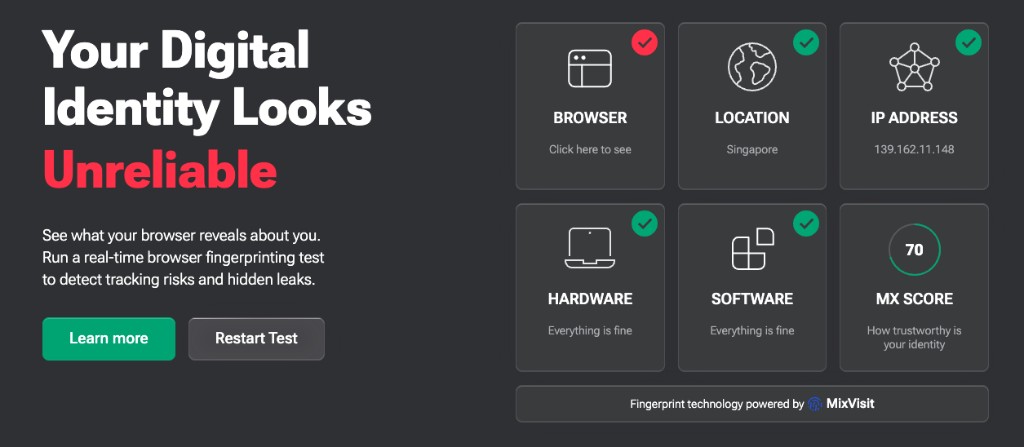
The first thing you see in this report is:
Your Digital Identity Looks Unreliable
However, the individual categories tell a more detailed story.
| Category | Observed result |
|---|---|
| Browser | Red warning |
| Location | Green check |
| IP Address | Green check |
| Hardware | Everything is fine |
| Software | Everything is fine |
| MX Score | 70 |
| Overall status | Unreliable |
The important distinction is that MX Score and the overall Unreliable status are not interchangeable measurements.
This test demonstrates that a score of 70 can coexist with a negative overall assessment.
It does not reveal how IPhey weights individual signals or whether a specific warning overrides the numerical score.
It would also be incorrect to interpret an MX Score of 70 as a 70% probability that a website will trust your browser.
To understand the warning, we need to examine the detailed signals.
Why Was the Browser Category Flagged?
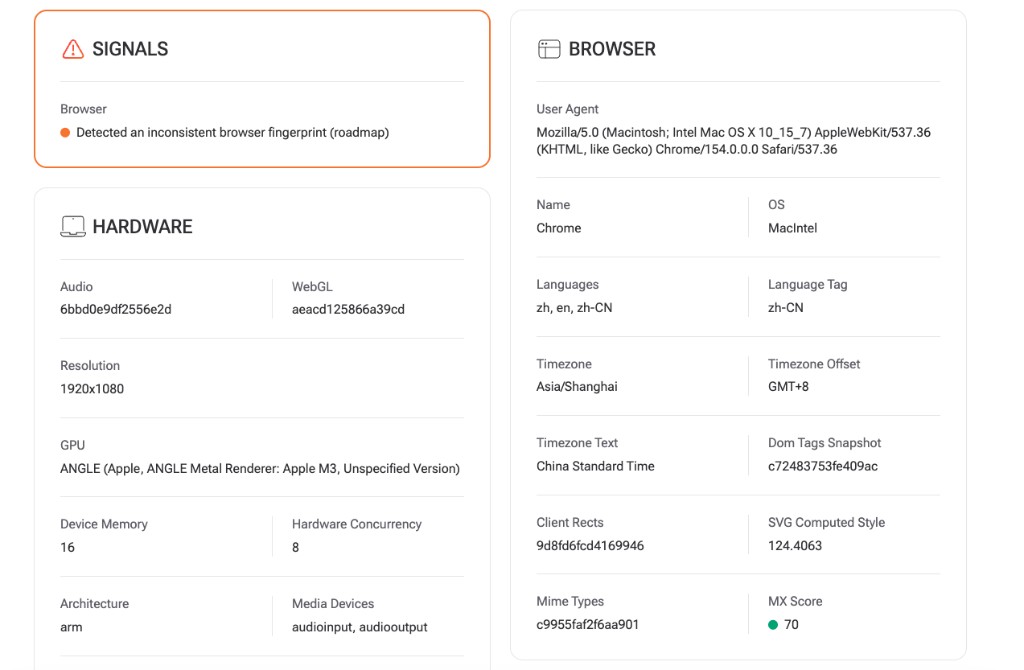
The Signals section contained the following message:
Detected an inconsistent browser fingerprint (roadmap)
This tells us that IPhey identified a fingerprint inconsistency signal in the Browser category.
However, the screenshot doesn’t specify exactly which field triggered the warning.
The report included these details:
| Field | Observed value |
|---|---|
| Browser | Chrome 154 |
| User-Agent platform | Macintosh; Intel Mac OS X 10_15_7 |
| Platform | MacIntel |
| GPU | Apple M3 |
| Architecture | arm |
| Screen resolution | 1920 × 1080 |
| Language tag | zh-CN |
| Browser timezone | Asia/Shanghai |
One combination stands out: the User-Agent and platform information include Intel Mac identifiers, while the hardware section reports an Apple M3 GPU and ARM architecture.
Is that necessarily a spoofed or inconsistent fingerprint?
No.
Browsers running on Apple Silicon Macs may retain Intel Mac identifiers for compatibility purposes.
The presence of Intel-related identifiers alongside ARM hardware is not, by itself, proof of fingerprint manipulation.
These values are worth reviewing, but the available report does not establish that they caused IPhey’s warning.
This is an important distinction when troubleshooting fingerprint tests: an apparent mismatch between two fields is not automatically a confirmed technical problem.
What Do the Other IPhey Results Tell Us?
Looking beyond the Browser warning helps us distinguish potentially meaningful issues from differences that may have legitimate explanations.
1. Singapore IP and Shanghai Timezone: Is That a Mismatch?
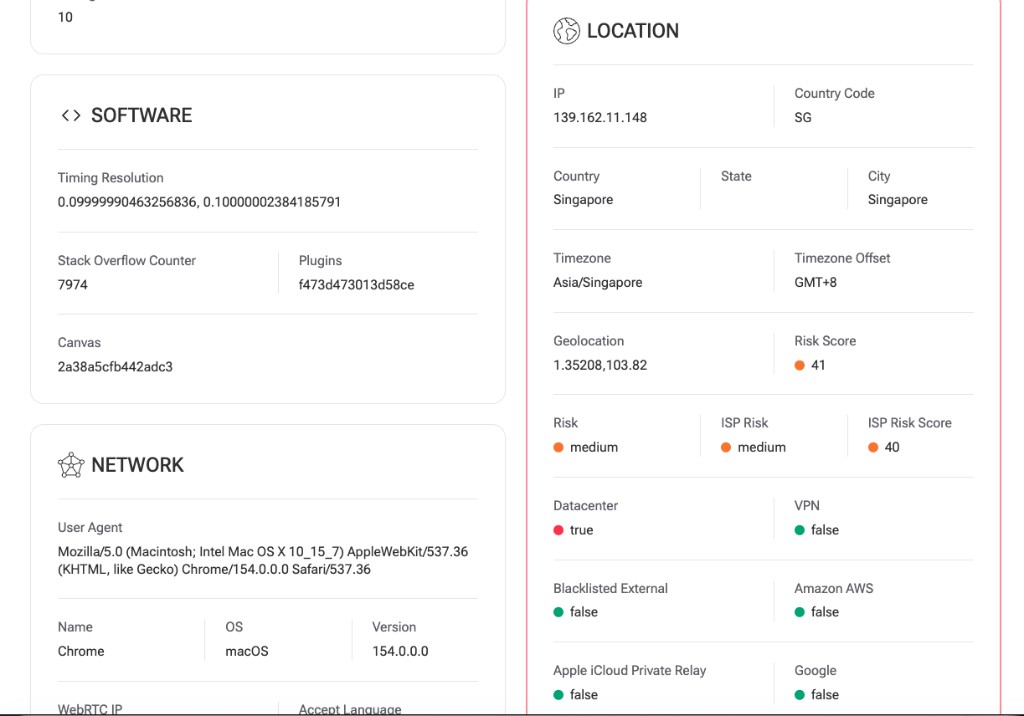
The report showed:
| Field | Result |
|---|---|
| IP country | Singapore |
| IP timezone | Asia/Singapore |
| Browser timezone | Asia/Shanghai |
| UTC offset | GMT+8 for both |
At first glance, the browser timezone and IP timezone appear different.
But Asia/Singapore and Asia/Shanghai both use UTC+8 in this case.
There is no time-offset difference between them.
This illustrates why comparing timezone names alone can be misleading.
Timezone identifiers, language preferences, and IP geolocation are different signals. A service may consider them together, but different timezone names do not automatically prove a configuration error.
When to investigate: When the reported timezone, UTC offset, or regional information differs from the environment you intended to use.
When not to change anything: When the values have a legitimate explanation and no concrete configuration problem has been identified.
2. Does Datacenter: True Mean the IP Is Bad?
In the same report, IPhey displayed:
| Indicator | Observed result |
|---|---|
| IP Risk Score | 41 |
| Risk | Medium |
| ISP Risk Score | 40 |
| Datacenter | True |
| VPN | False |
| Blacklisted External | False |
These fields describe different aspects of the connection.
Datacenter: True means IPhey classified the address as belonging to a datacenter network.
VPN: False means the corresponding check did not flag the connection as a VPN.
Risk: Medium is the risk classification IPhey assigned to the IP.
Blacklisted External: False indicates that the associated blacklist check did not return a positive flag in this test.
A datacenter IP isn’t inherently malicious. Datacenter addresses are commonly used for cloud infrastructure, servers, development environments, and legitimate business applications.
Whether such an address is suitable depends on the service you’re accessing and your intended use.
Also, IP Risk Score 41 and MX Score 70 are separate indicators. They should not be interpreted as two versions of the same score.
The useful question is whether the IP classification and risk indicators match the network you intended to use.
3. WebRTC and Bot Detection: What Does a Green Result Prove?
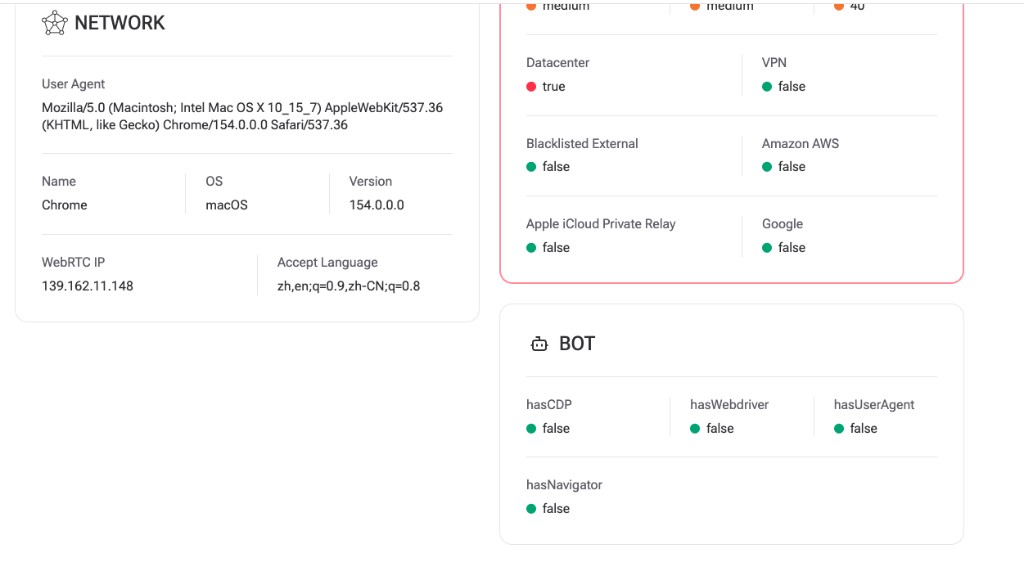
In the Network section, the reported WebRTC IP matched the public IP displayed by the test.
This means the particular WebRTC field did not reveal an additional unexpected public address in that observation.
However, it doesn’t establish that every possible network route, DNS request, or WebRTC condition is leak-free.
The Bot section also reported several fields as false:
| Field | Observed value |
|---|---|
| hasCDP | false |
| hasWebdriver | false |
| hasUserAgent | false |
| hasNavigator | false |
These values mean the corresponding conditions were not flagged in that test.
They do not guarantee that other detection systems would reach the same conclusion.
A clean result in one category should only be interpreted within the scope of that specific check.
How to Troubleshoot an IPhey Unreliable Result
If IPhey shows Unreliable, you don’t need to immediately replace your proxy, rebuild your browser profile, or change every fingerprint setting.
A more reliable approach is to identify the source of the warning before deciding whether anything needs to be fixed.
Step 1: Find the Category That Failed
Start with the five main categories: Browser, Location, IP Address, Hardware, and Software.
Identify which category contains the warning, then examine its detailed signals.
If Browser is flagged while IP Address is green, don’t automatically assume the proxy is responsible.
Likewise, if the problem appears in the network information, changing graphics or browser fingerprint settings may not address it.
Step 2: Compare the Report with Your Actual Setup
Review your actual browser version, operating system, graphics hardware, language, timezone, and public IP.
Then separate the findings into two situations.
Situation A: A reported value doesn’t match your real configuration.
For example, the browser may be exposing an unexpected operating system or a network exit you didn’t configure.
This deserves further investigation.
Situation B: The reported values are accurate, but IPhey still flags them.
For example, an Apple Silicon Mac may legitimately report certain Intel Mac compatibility identifiers.
In that situation, the correct next step is to understand the detection rule, not automatically modify the browser.
Step 3: Compare Against a Standard Browser
If the warning occurs in a specially configured browser profile, consider running the same test in a standard, unmodified Chrome installation.
Keep the device and network connection consistent where possible.
Record the browser version and relevant settings for both tests.
If both browsers show similar warnings, the behavior may be related to the platform, browser compatibility, or the detection criteria.
If only the modified profile triggers the warning, compare the actual values reported by each browser.
This comparison cannot independently prove that IPhey is right or wrong, but it can help narrow down the possible causes.
Step 4: Cross-Check the Signals with Another Tool
If IPhey displays a general warning without identifying the exact conflicting fields, a second diagnostic tool may provide useful context.
The EnvTrace Browser Fingerprint Test checks browser identity, APIs, graphics-related properties, cross-context signals, and stability.
It presents an environment consistency assessment alongside individual findings that may need attention.
You can use it to investigate whether the browser exposes unexpected or inconsistent properties.
However, different tools use different methods and interpretation rules.
If their results disagree, compare the underlying signals instead of assuming that one score must be correct.
Step 5: Change One Confirmed Issue at a Time
If you identify a genuine configuration problem, record the original result before making changes.
Then change only the relevant setting and run the test again.
Avoid simultaneously changing User-Agent, timezone, language, IP address, and hardware-related parameters.
When several variables change together, it becomes difficult to determine which modification affected the result.
And if the reported properties are accurate and you haven’t found a concrete problem, there may be no reason to change your setup just to achieve a higher MX Score.
Which IPhey Warnings Actually Need Attention?
The following examples summarize how to approach common findings without overreacting to individual indicators.
| Finding | What it may mean | Recommended action |
|---|---|---|
| MX Score 70 with Unreliable | A warning exists, but the number alone doesn’t explain it | Inspect detailed Signals |
| Intel Mac identifiers with Apple M3 hardware | May reflect normal compatibility behavior | Verify actual device and browser |
| Singapore IP with Asia/Shanghai timezone | Both use UTC+8 in this case | Don’t treat it as an automatic time mismatch |
| Datacenter: True | IP classified as a datacenter address | Verify that the network type is expected |
| Unexpected public WebRTC IP | An additional network route may be exposed | Investigate the address and routing |
| Bot indicators return false | Those specific signals were not flagged | Don’t treat this as proof against all automation detection |
The purpose of this checklist isn’t to make every indicator green.
It’s to identify which observations need explanation, which need further testing, and which may require no action at all.
Does Passing IPhey Mean Your Accounts Are Safe?
No.
IPhey can examine certain browser and network signals, but it doesn’t know every factor used by platforms such as Facebook, TikTok, Instagram, or online marketplaces.
Those services may also consider account history, authentication activity, and other behavioral or security-related information.
A high MX Score therefore cannot guarantee that an account will avoid verification or restrictions.
Similarly, an Unreliable result doesn’t necessarily mean an account will be restricted.
Browser fingerprint consistency, fingerprint uniqueness, and account trust are related but distinct concepts.
IPhey is most useful for understanding the technical environment your browser exposes, not predicting how every external platform will evaluate your account.
IPhey vs EnvTrace: What’s the Difference?
IPhey and EnvTrace both provide browser fingerprint and environment diagnostics, but their reports emphasize different aspects of the testing experience.
IPhey presents an MX Score, an overall assessment, and detailed browser, location, IP, hardware, and software information.
EnvTrace focuses on examining browser and network signals, evaluating environment consistency, and identifying specific items that may need verification.
| Feature | IPhey | EnvTrace |
|---|---|---|
| Browser fingerprint test | Yes | Yes |
| Overall assessment | MX Score and status | Environment consistency score |
| Browser and device information | Yes | Yes |
| Individual findings | Signals and category details | Findings and items requiring confirmation |
| Technical explanation | Detailed detected properties | Consistency assessment and explanatory results |
| IP and WebRTC diagnostics | Available | Available |
For example, if you’re unsure whether browser identity or graphics-related properties are consistent, you can use the EnvTrace Browser Fingerprint Test to inspect the reported signals.
The test also distinguishes between confirmed findings and checks where insufficient information is available.
That distinction matters because a missing signal should not automatically be treated as a passing result.
Keep in mind that IPhey’s MX Score and EnvTrace’s consistency score use different evaluation methods. Their numerical values are not directly comparable.
Neither score should be interpreted as a universal measure of account safety.
Final Takeaway
IPhey is a useful tool for examining browser fingerprints, device characteristics, IP information, and network-related signals.
In the real example covered in this guide, IPhey returned an MX Score of 70 and an Unreliable assessment, with the Browser category flagged while the other four main categories appeared green.
The detailed report revealed an inconsistent browser fingerprint warning, but it didn’t identify the precise field responsible.
It also included observations that may have legitimate explanations, such as Intel Mac compatibility identifiers on Apple Silicon hardware and two timezone names sharing the same UTC offset.
The key lesson is simple:
Don’t make configuration decisions based on the MX Score or a red warning alone.
Inspect the underlying signals, compare them with the actual environment, and investigate differences before changing anything.
If you want another perspective on browser fingerprint consistency, you can run the EnvTrace Browser Fingerprint Test and compare the findings.
About This Test
This analysis is based on screenshots from one IPhey test session reporting Chrome 154, Apple M3-related hardware information, and a network connection geolocated to Singapore.
It documents one observed environment, not a controlled study across multiple browsers, devices, or network providers.
The internal MX Score calculation was not independently verified, and the observations should not be treated as evidence of IPhey’s overall detection accuracy.
Related tools