
On this page
When you open Whoer.net to check your network, you may see “Your disguise: 100%” on the homepage while the DNS leak test still flags “DNS queries are not protected.” Or you may see deductions such as Languages different −20% in the extended breakdown. Does that mean your proxy failed, your real IP leaked, or your account environment is unsafe?
Bottom line: Whoer’s disguise score is a composite anonymity hint from that tool—not a platform ban probability. When the score is below 100%, open the deduction list first, then verify whether the warning matches your intended VPN/proxy/DNS setup.
This article uses real screenshots from October 2026 (Hong Kong exit path in the test browser). It explains how to read Whoer, walks through a DNS warning case, and shows how EnvTrace cross-checks browser and network signals.
How to read a Whoer report
Whoer is an online IP, DNS, and anonymity checker. On the English Whoer home page, after the page loads you typically see public IP, country, ISP, DNS resolver, browser/OS hints, proxy/anonymizer flags, and a disguise percentage.
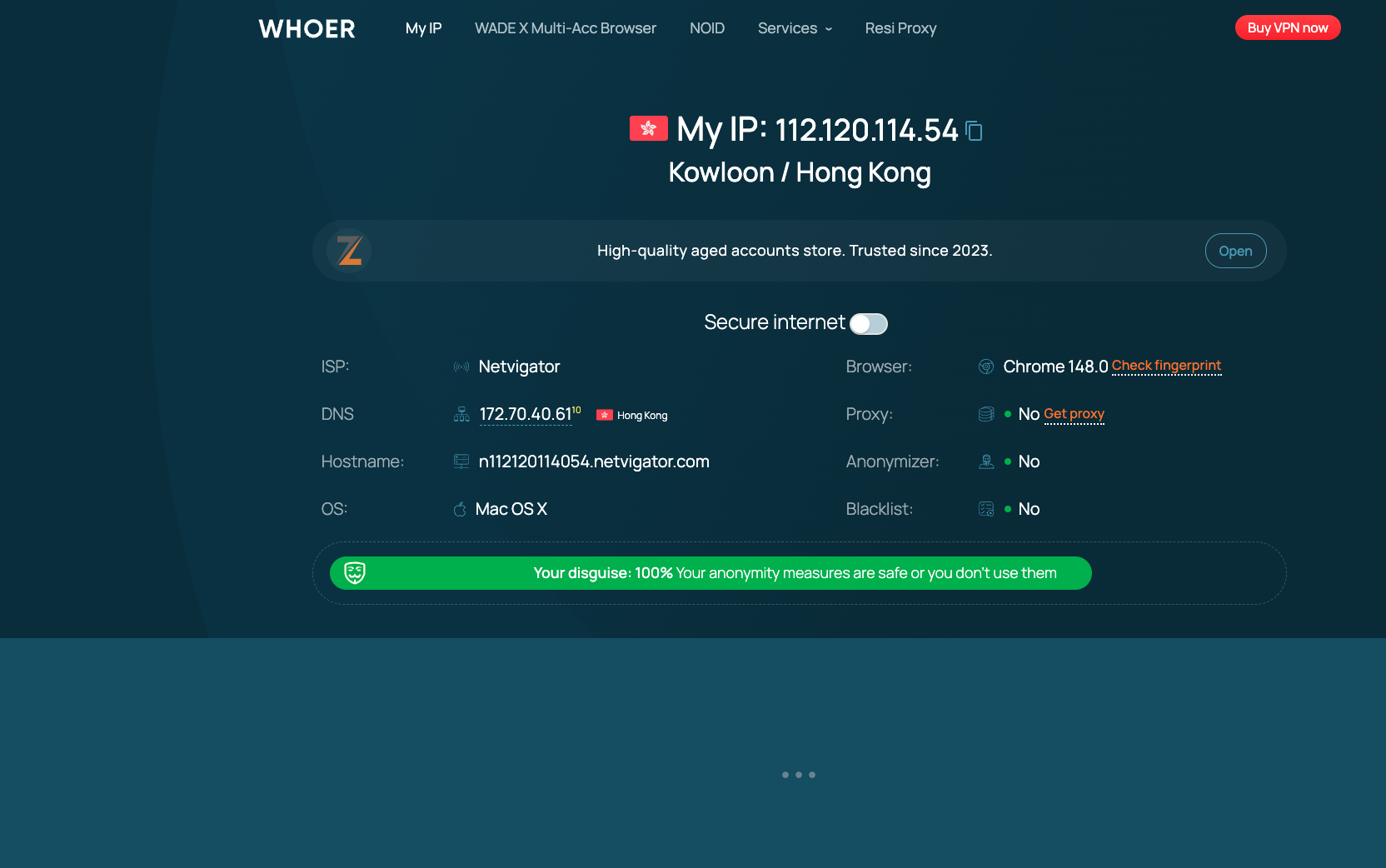
Read in this order—not only the headline percentage:
- My IP — Is this the exit you intend to use (country, ISP)?
- DNS — Does the resolver country/provider match your routing plan?
- Proxy / anonymizer / blacklist — “Not detected” only means Whoer did not flag that row; other sites may disagree.
- Extended breakdown — Open More details (or the extended view) to see which line items actually deducted points.
Why isn’t the score 100%?
Whoer combines many signals: DNS country mismatch, timezone vs IP, language vs IP country, WebRTC/IP mismatch, proxy/Tor hints, blacklist status, browser deltas, and more. Different warnings mean different things.
DNS mismatch — Resolver geography differs from exit IP geography. That is a clue to verify, not automatic proof of a leak.
Timezone mismatch — Local clock/timezone does not match IP geolocation expectations. Travel, remote work, and geo-DB error can cause this.
Languages different — Browser/system language differs from the IP country’s common languages. Bilingual users abroad are normal; language alone is not proof of fraud.
WebRTC / IP mismatch — Compare WebRTC candidates with page exit IP. Dual-stack IPv4/IPv6 or split routes can look like leaks until you inspect addresses.
Proxy or blacklist flags — Reflect Whoer’s classification sources, not every platform’s risk engine.
Case study: 100% on home, “not protected” on DNS test
In our October 2026 session, the English homepage showed 100% disguise with Hong Kong exit IP and a Hong Kong-labeled DNS field on the summary card—yet the dedicated DNS test reported vulnerability.
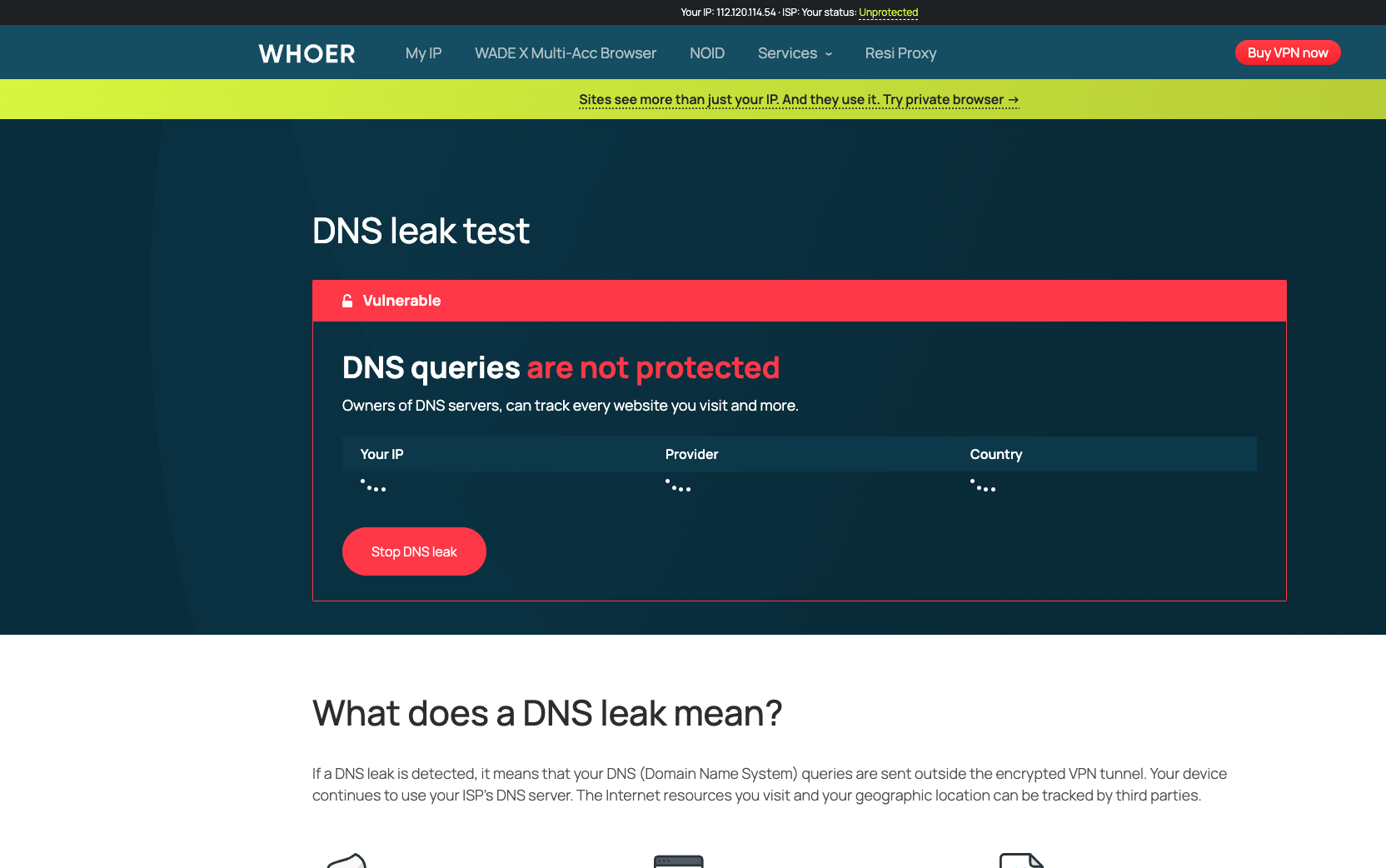
Important nuance:
- The home summary and DNS leak page use different probes and wording. They can disagree.
- Listing public resolvers (Google, Cloudflare, etc.) is not the same as proving your ISP DNS bypassed a VPN tunnel—but it is a reason to confirm where DNS requests actually go.
- In the extended panel (same session), Whoer also listed Languages different −20% and Do Not Track −0%. Those items explain how the score could drop in other environments even when the home bar shows 100%.
We cannot conclude from screenshots alone that plaintext DNS left an expected tunnel. You still need client logs, split-tunnel rules, and repeat tests in the same browser profile and proxy you will use for accounts.
Fix DNS warnings in order
Step 1: Decide where DNS should go
Without VPN, local DNS may be fine. With VPN, confirm whether DNS must stay inside the tunnel. The “correct” setup depends on your goal—do not change DNS blindly because countries differ on the page.
Step 2: Identify resolvers, not only flags
Note provider names and IPs in the DNS test table. Operator DNS, VPN DNS, and public DNS behave differently. Chase cases where expected VPN DNS is bypassed, not every cross-border label.
Step 3: Review VPN/proxy DNS and split rules
Check leak protection, remote DNS, IPv6/DoH bypass paths, and per-app split tunneling. Changing to 8.8.8.8 alone does not force DNS into a VPN.
Step 4: Cross-check WebRTC and browser context
DNS fixes one class of signal. Browsers may still expose WebRTC addresses. Use EnvTrace DNS leak test and WebRTC leak test in the same session and compare concrete IPs, not only red/green labels.
Is 90% “bad”? Is 100% “safe”?
90% is not automatically unsafe; 100% is not account safety. The percentage is Whoer’s rule set applied to observable network/browser signals—not “30% chance of detection.”
Some users lose points for language or timezone while not leaking real paths; others score high while business platforms still use history, behavior, and device graphs.
Act on evidence in the deduction list, not on chasing 100%.
Why also run EnvTrace?
Whoer focuses on IP/DNS/anonymity hints. For account environment signals (browser + IP + network consistency), run EnvTrace’s free account check in the profile and exit you will actually use.
In the same October 2026 Hong Kong-path session, EnvTrace reported 94/100 with Medium risk and Leak protection: Abnormal, pointing to WebRTC exposing a public IP different from the page exit.
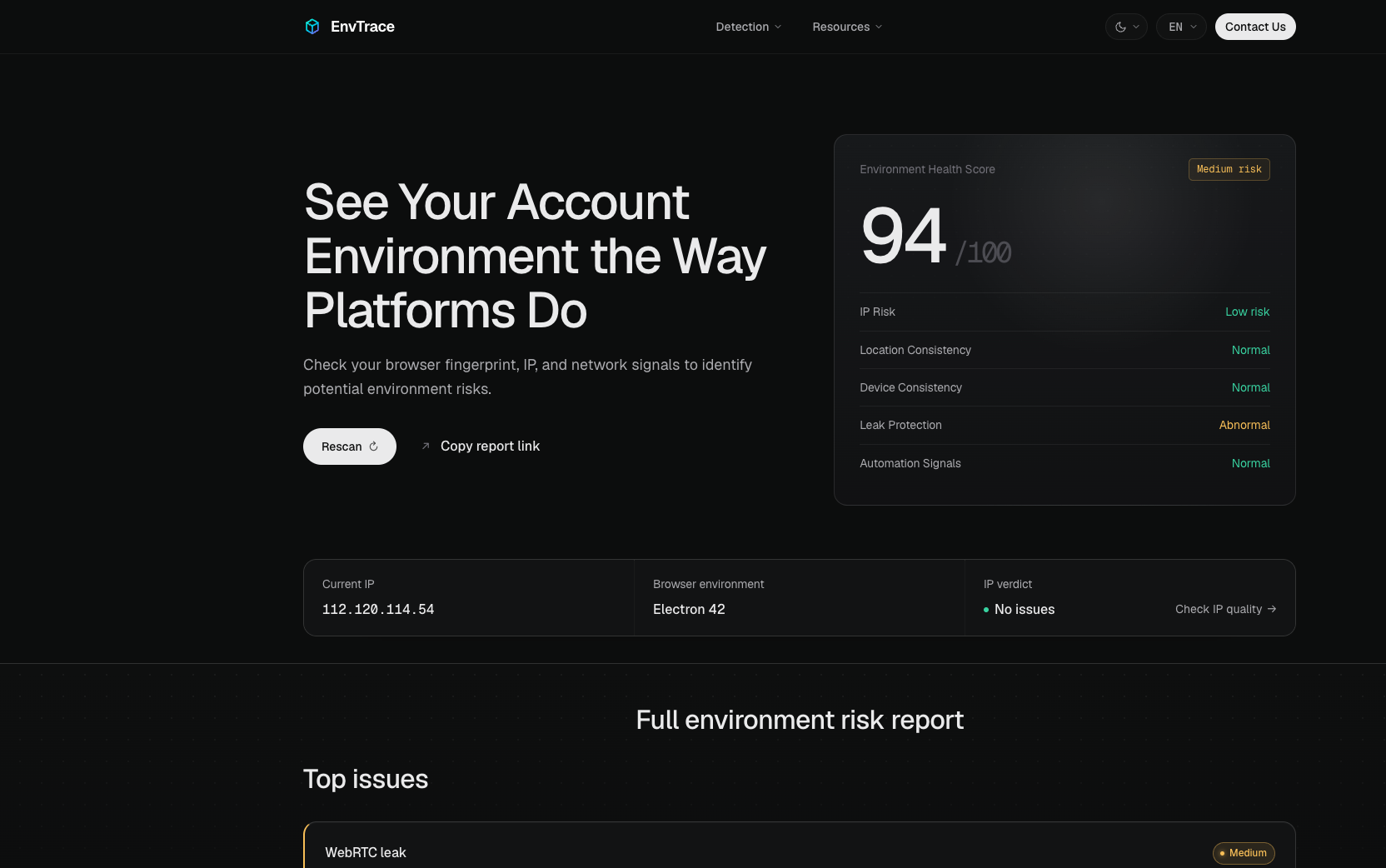
Whoer and EnvTrace numbers in this article come from the same broad test week but not every screenshot is one simultaneous click. Do not treat them as a controlled A/B. Use each tool for its question: Whoer for DNS/anonymity cues; EnvTrace for browser/network consistency before login.
FAQ
Does DNS mismatch always mean a leak?
No. It means Whoer saw resolver geography inconsistent with its rules. Confirm resolver identity and routing.
Can I browse normally at 70%?
Usually yes. Treat the score as hints; read line items.
Why do Whoer and EnvTrace disagree?
Different signals, weights, and tests—and possibly different moments in the session.
Should I fix Do Not Track first?
Not necessarily. DNT is a preference header many sites ignore; it is not a leak fix.
I changed IP but the score stayed the same
Deductions may be DNS, language, timezone, or browser—not IP alone. Open details before tweaking settings.
Summary
Use Whoer to surface checkable clues, not as the only verdict. Our live English UI session showed 100% on the home summary but a DNS leak test warning with multiple public resolvers—exactly why you should read tests separately and verify routing.
Before important logins, rerun checks in your real profile and exit, then read EnvTrace’s abnormal items—not merged scores from different pages.
Testing note: Screenshots from October 2026 Whoer and EnvTrace sessions on a Hong Kong-labeled exit path. Product UI and rules may change.
References: