On this page
Multilogin recovered a usable working state in both tests: normal stopping and reopening, and restoring a browser profile from the trash bin. Website login, cart contents, bookmarks, and previous tabs returned after a normal save. Trash-bin restoration also preserved the profile’s management information. Both workflows earn A.
We ran these tests on October 31, 2026 with a paid Pro 20 plan, one Mac, Mimic 155.5, and a dedicated cloud browser profile. For someone maintaining account profiles, these operations answer a practical question: can work continue from the point where it stopped?
The security assessment has a separate evidence basis. Recovery results come from actual operations. Account protection, storage protection, and member permissions are recorded through interface observations and official documentation.
What the save confirmation means
Official guidance: stopping a profile saves its data according to the selected cloud or local storage mode. Multilogin tells users to wait for saving to finish before exiting the application. Official missing-data and save checks.
We used that completion state as a checkpoint: stop the profile, confirm the saved message, restart, refresh the website, and inspect the actual data. Checking the page after a refresh helps distinguish recovered state from something that merely remained visible in an open tab.
Test 1: login recovery after a normal stop
We created a cloud profile with its startup behavior set to restore previous tabs. In SauceDemo’s public demonstration account, we added one Backpack and one Bike Light to the cart and created a custom bookmark with a recognizable test marker.
- Refresh the product page and confirm the active login and two cart items.
- Open the protected product URL in ordinary Chrome. It returns to the login screen, establishing a signed-out comparison.
- Stop the Multilogin test profile. Confirm the saved-data message and that the running-profile count reaches zero.
- Restart the profile and observe the product page returning.
- Force-refresh the page, then check the login, cart quantities, and custom bookmark.
| Check | Result after reopening |
|---|---|
| Website login | Still signed in after refresh |
| Cart | Both original products and quantities retained |
| Custom bookmark | Saved name and target retained |
| Previous tabs | Restored automatically |
Observed result: A for login and working-state recovery after a normal save. The confirmation was clear, and reopening returned us to a usable session without rebuilding the cart or bookmark.
Test 2: restoring a deleted browser profile
Official guidance: browser profiles can be moved to the trash bin and restored before permanent removal. Items in the trash continue to count toward plan limits. Official trash-bin instructions.
After a normal stop, we selected only the dedicated test profile and moved it to the trash bin. The active list lost one item and the trash gained one. The plan count stayed at 6/20.
We then selected Restore in the trash bin. The interface confirmed that the profile had returned to its original folder. After launching it again, we refreshed the website and checked the profile information and saved browser state.
| Check | Result after restoration |
|---|---|
| Profile name, original folder, notes | Preserved |
| Website login | Preserved and usable after refresh |
| Cart products and quantities | Matched the state before deletion |
| Custom bookmark | Matched the state before deletion |
| Profile allocation | The item occupied a slot while in the trash and returned to the normal list after recovery |
Observed result: A for trash-bin recovery. The restored profile could continue the previous work. The retained quota slot is part of that workflow: moving the profile out of the active list preserves both its recovery path and its allocation.
The original recovery experiments have step-by-step written records. The screenshot in the next section belongs to the later T03 experiment and is identified separately.
When a website session expires
During the subsequent isolation test, profile A returned to SauceDemo’s login page after approximately ten minutes. The official application source sets the login cookie’s lifetime to ten minutes. After signing in again, A’s original cart was still present. A further full stop and restart within that lifetime recovered the login successfully. Sauce Labs login source.
That gives users a useful diagnostic order. Check whether the profile finished saving, inspect the website’s session lifetime, and see whether other state such as a bookmark or cart survived. Those observations identify which part of the working state changed.
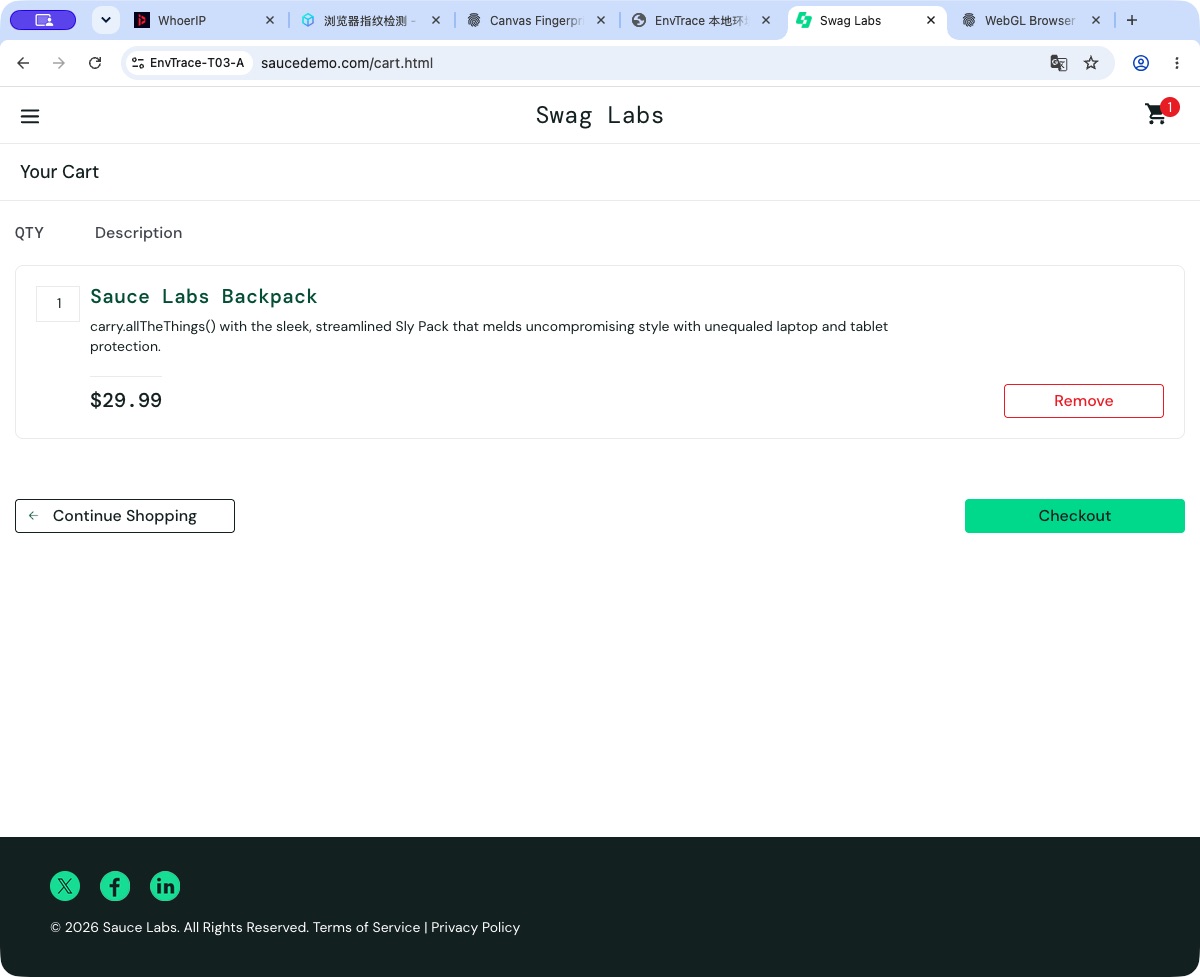
The lesson for daily use is to diagnose the saved data and the website session together. A browser profile preserves data; the website determines how long a login remains valid.
Data security: separate the questions and evidence
Recovery answers whether work can resume after an interruption or mistaken deletion. Account protection determines who can sign in to the workspace. Member permissions govern access to profiles. Storage protection concerns how saved information is protected.
| Capability | Evidence in this review | Assessment |
|---|---|---|
| Normal save and restart | Actual login, cart, bookmark, and tab checks | A for the tested recovery workflow |
| Trash-bin restoration | Actual profile-information and saved-state checks | A for the tested restoration workflow |
| Two-factor authentication | Interface entry and vendor documentation | Documented account protection |
| Cloud storage encryption | Vendor security description | Vendor-stated protection; implementation review remains outside this test record |
| Member permissions | Official role and access documentation | Documented controls; member revocation was deferred |
The official 2FA guide distinguishes email-and-password accounts from third-party sign-in. With third-party sign-in, the additional verification is managed by that identity provider. Official 2FA guide.
Multilogin’s comparison page describes AES protection for account data and encrypted cloud sessions. Its team documentation describes member management and access controls. Those are attributed product statements in our evidence record. Vendor storage-security description, official member-management guide.
Our product assessment: recovery already delivers a visible operational benefit. Security settings would be easier to evaluate if the product made the connection between account protection, assigned access, and completed saves clearer within the daily workflow. Each deserves its own observable state and explanation.
A practical save-and-recover routine
At the end of work, stop the profile and wait for the saved-data confirmation before quitting the application. On the next launch, check the website state you need to continue. If a profile is accidentally moved to the trash, restore the matching item and verify its name, folder, and browser data.
Choose cloud or local storage consciously when creating a profile. Before moving work to another computer, check which mode holds that profile’s data. Our web, desktop, and storage analysis explains that choice.
The strongest result from these tests is continuity: normal saving and trash-bin restoration both brought back a profile that could resume work. That is why the two recovery workflows are explicit strengths in our overall Multilogin review.
More from the Multilogin review series
- Multilogin Review: Profile Isolation, Fingerprint Stability, and Everyday Use
- Using Multilogin in Restricted Regions: VPN, Agent, and Network Access
- Multilogin Web vs. Desktop: How to Choose Cloud or Local Profile Storage
- Multilogin Profile Isolation and Fingerprint Stability: Defaults, Canvas Noise, and Restarts
- Multilogin Data Recovery Test: Saved Logins, Browser State, and Deleted Profiles