How to find your IP address on any device
The fastest way to find your public IP is to open an online lookup page. To find the private address assigned to a device, use its network settings. To sign in to a router, find the default gateway instead. These are different addresses, and choosing the right one is the first step.
Also available in 简体中文

Which IP address are you trying to find?
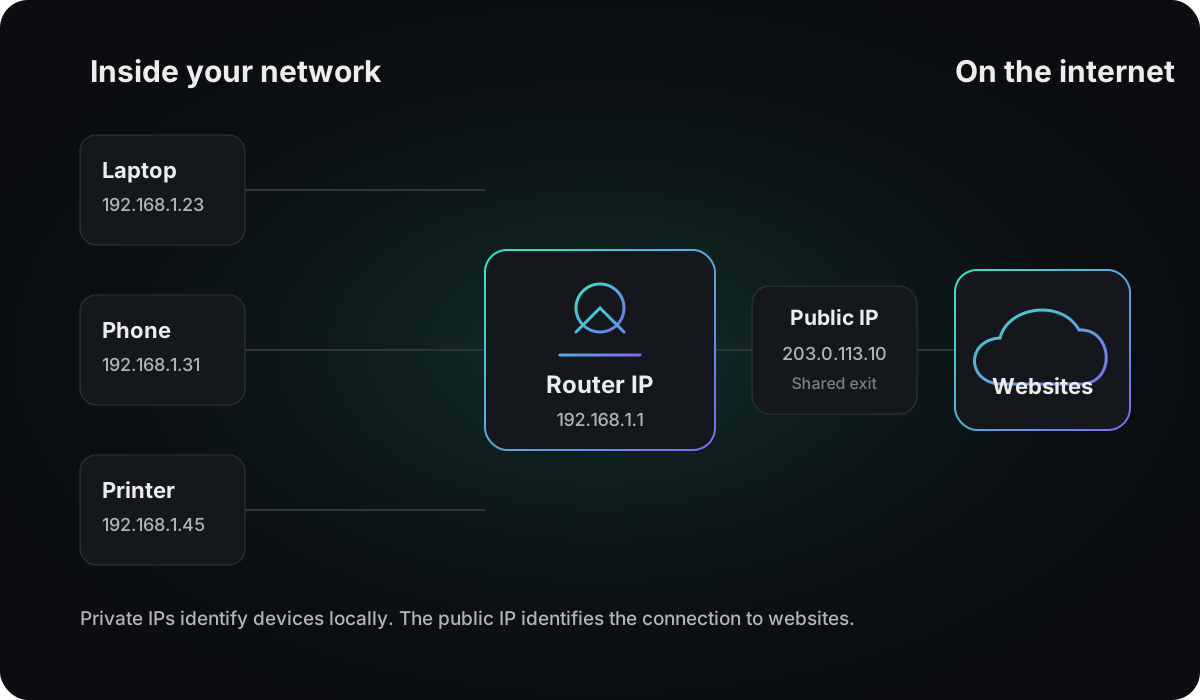
An internet connection can expose several addresses at once. A website sees your public IP. Your router gives each device a private IP. The router itself has a local address called the default gateway. Start with the task, not the number.
| What you want to do | Address to find | Fastest route |
|---|---|---|
| See the IP and country websites detect | Public IP | Open the IP lookup |
| Connect to a printer, NAS or another local device | Private IP | Open the device’s network details |
| Sign in to the router admin page | Router IP / default gateway | Check the gateway in network settings |
| Confirm a VPN or proxy exit | Public IP, then WebRTC | Check the public IP and run the WebRTC leak test |
How to find your public IP address
Open EnvTrace IP Lookup on the connection you want to inspect. The page automatically reads the exit IP that websites currently see, then places its country, region, city, ISP, ASN and timezone beside it.
- Connect to the Wi-Fi, mobile network, VPN or proxy you want to check.
- Open the public IP lookup
- Read the IP address, country, city, ISP, ASN and timezone shown in the result.
- Reconnect and repeat if you want to compare two networks or exits.
How to find your private IP address
A private IP identifies one device inside the current Wi-Fi or Ethernet network. It usually begins with 192.168, 10 or 172.16–31. It cannot be geolocated because it is not routed on the public internet.
Windows 11 and Windows 10
- Open Settings, then select Network & internet.
- Choose Wi-Fi and the connected network, or choose Ethernet.
- Open Properties and find IPv4 address.
Command Prompt gives the same answer without opening Settings. Run the following command and use the active Wi-Fi or Ethernet adapter, not a disconnected or virtual adapter:
ipconfig
IPv4 Address is the computer’s private address. Default Gateway is the router address.
macOS
- Open the Apple menu, then System Settings.
- Select Network, then choose the active Wi-Fi or Ethernet connection.
- Select Details, then TCP/IP. Read the IP address and router fields.
Terminal can return the Wi-Fi address directly:
ipconfig getifaddr en0
iPhone and iPad
- Open Settings, then Wi-Fi.
- Tap the More Info button beside the connected network.
- Find IP Address under the IPv4 Address section.
This screen shows the device’s private Wi-Fi address. It does not show the public exit IP seen by websites.
Android
- Open Settings.
- On Pixel, open Network & internet, then Internet. Other devices may call this Connections or WLAN.
- Select the connected Wi-Fi network or its settings icon.
- Open Details or Advanced and find IP address.
Android menu names vary by manufacturer and version. The address is normally inside the connected Wi-Fi network’s detail screen.
Linux
Open a terminal and list the addresses assigned to each interface:
ip addr
Use the inet value under the active wireless or Ethernet interface. Ignore 127.0.0.1, which is the loopback address.
To find the active IPv4 and IPv6 default routes, run:
ip route show default
ip -6 route show default
How to find your router IP address
On a typical home network, the router is also the default gateway. Entering that address in a browser usually opens the router’s admin page. Managed and multi-router networks can use a gateway that is not the management address. Neither address is the public IP assigned by the ISP.
Windows
ipconfig
Find Default Gateway under the active adapter.
macOS
route -n get default
Read the value beside gateway. You can also find it in System Settings → Network → the active connection → Details → TCP/IP.
Why your public and private IP addresses are different
A home router uses network address translation (NAT). Each phone, laptop and TV gets a separate private address, while the router sends their internet traffic through one public IP. That is why several devices can show different addresses in Settings but the same address on an IP lookup page.
A full-tunnel VPN adds another exit, so websites see the service’s public IP rather than the original home IP. Split-tunnel VPNs and proxies can affect only selected apps or destinations. Mobile carriers often use large shared gateways, so a cellular IP can change frequently and resolve to a city far from the phone.
Troubleshooting unexpected IP results
The public IP did not change after connecting
Reload the lookup after the tunnel connects. If the address still belongs to the original ISP, check whether the app or browser is excluded by split-tunnel or proxy bypass rules. IPv4 and IPv6 can also follow different routes.
A command returned no private address
Confirm that the device is connected, then inspect the active interface instead of assuming a fixed name such as en0 or eth0. A 169.254.x.x address normally means the device did not receive a regular address from DHCP.
The public IP city looks wrong
IP geolocation often points to an ISP hub or registration area rather than the device. It is not GPS. See Why Is My IP Location Wrong? for the common causes.
Should you check IPv4 or IPv6?
IPv4 looks like 203.0.113.10. IPv6 is longer and uses hexadecimal groups, such as 2001:db8::1. A connection can have both at the same time, and a website may prefer IPv6 when it is available.
What you can learn after finding the address
A public IP can be mapped to a country, region, approximate city, ISP, ASN and timezone. It cannot reveal a street address or subscriber name. Read Can You Look Up a Home Address From an IP? for that boundary, or How Accurate Is IP Geolocation? for the limits of country and city estimates.
Location is only one layer. To check whether the exit is residential or datacenter, flagged as a proxy, present on public blacklists, or associated with abuse, use the IP purity check.